
Reminders Guide
1. Overview
The Reminders module helps to schedule, track, and manage follow-ups and tasks to ensure timely action on queries and customer interactions.
It acts as a personal task management system to improve productivity and avoid missed follow-ups.
2. Access for Agents
| Feature | Access |
| View Own Reminders | Allowed |
| Create Reminder | Allowed |
| Assign Reminder | Allowed (if permitted) |
| Edit/Delete Reminder | Allowed |
| Mark Complete / Snooze | Allowed |
3. Accessing Reminders
Step-by-Step
- Navigate to the side panel
- Click on the “Reminders” option
- The calendar view will open, displaying all reminders
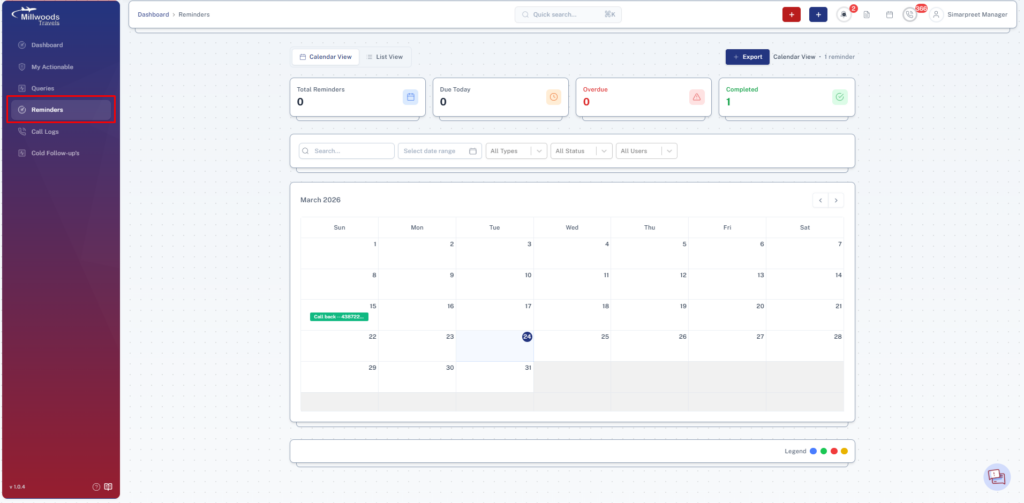
One-Line Explanation
- Calendar View: Displays all reminders based on date and time
- Filters: Helps refine reminder results
- List/Card View: Alternative formats to view reminders
4. Viewing and Managing Reminders
Step-by-Step
- Click on any reminder event
- A modal opens with full details
- Choose to edit or delete the reminder
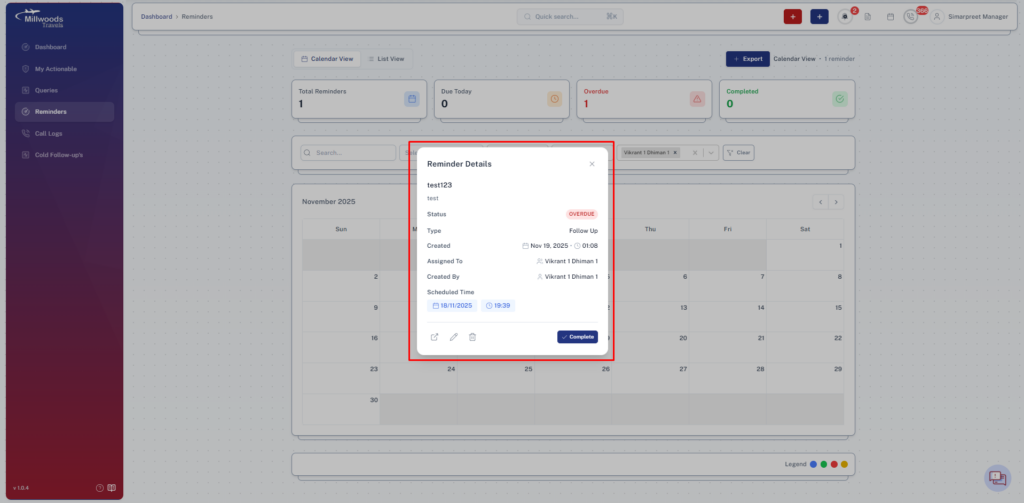
One-Line Explanation
- Event Click: Opens detailed reminder information
- Edit Option: Modify reminder details
- Delete Option: Remove reminder permanently
5. Creating a Reminder
Step-by-Step
- Click on “New Reminder”
- A side panel opens
- Enter all required details
- Click Save
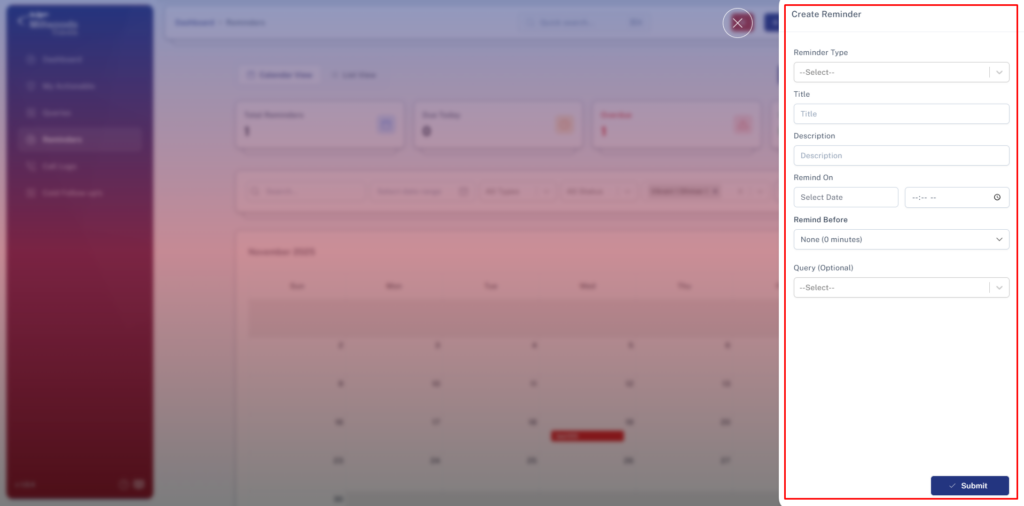
One-Line Field Explanation
- Query: Links the reminder to a specific query (optional)
- Title: Short name of the reminder
- Description: Detailed explanation of the task
- Create For: Assign to yourself or another agent
- Remind On: Date and time when reminder triggers
- Remind Before: Advance alert before the reminder time
- Reminder Type: Category of reminder
6. Reminder Queue (Quick Access)
How to Access
- Click the reminder icon in the top navigation bar
- A side panel opens showing reminder lists
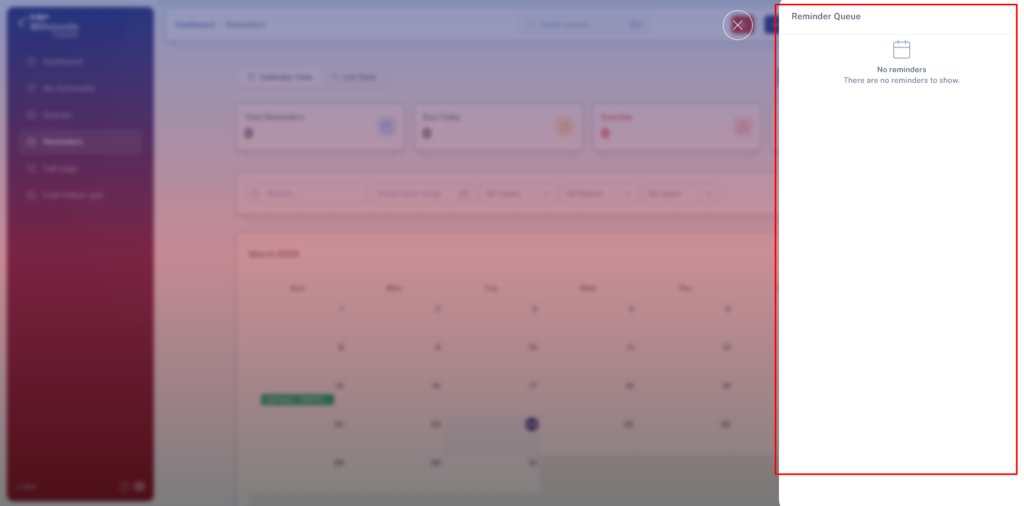
What You See
- Reminders from the past 12 hours
- Reminders for the upcoming 12 hours
Actions Available
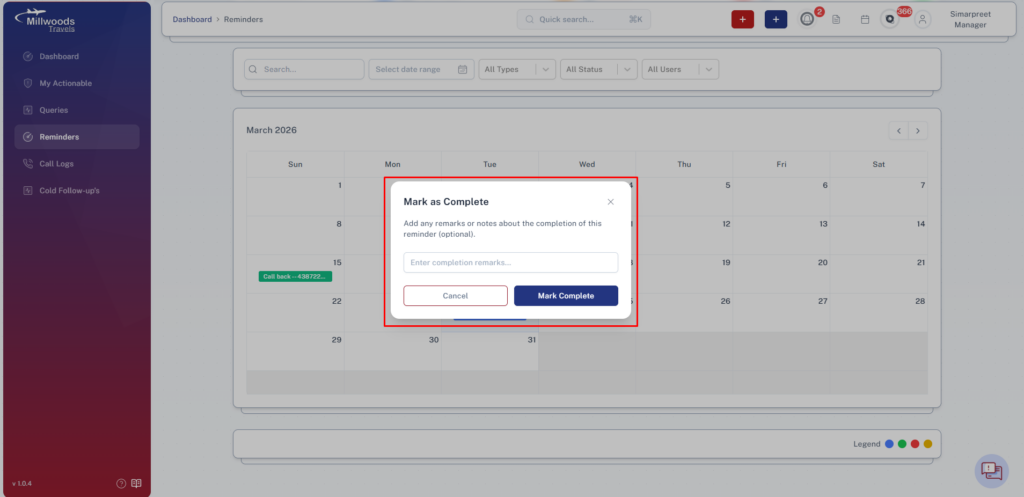
Mark as Complete
Marks the reminder as completed after adding remarks.
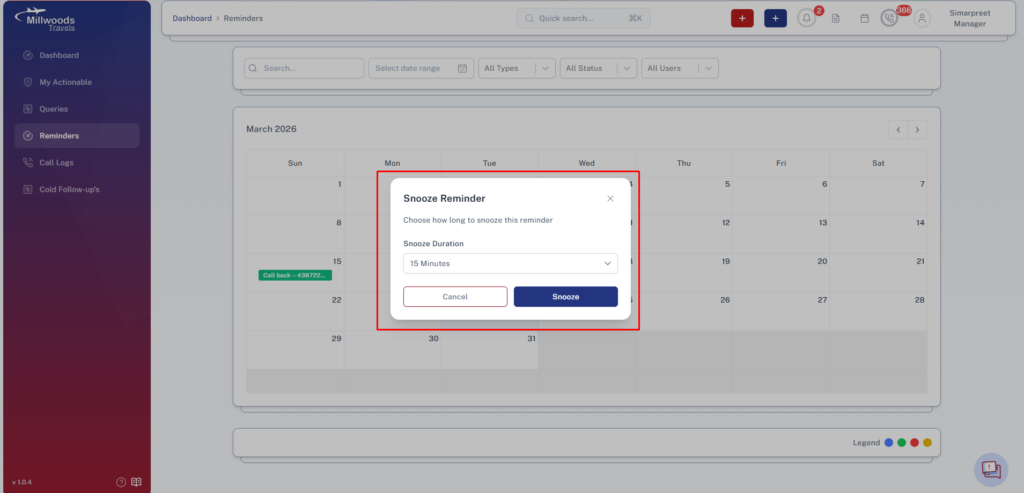
Snooze
Reschedules the reminder by selecting a new time duration.
One-Line Explanation
- Mark as Complete: Closes the reminder task
- Snooze: Delays the reminder to a later time
- Remarks: Required note for completing a reminder
7. Reminder Alerts
When a reminder becomes due:
- A floating alert appears at the bottom-left of the screen
- An audio alert continues until action is taken
Steps
- Click on the alert
- A pop-up opens with full reminder details
- Choose to mark complete or snooze
One-Line Explanation
- Floating Alert: Notifies users of due reminders
- Audio Alert: Ensures the reminder is noticed
- Popup: Displays full reminder details and actions
Daily Usage
- Check reminders at the start of the day
- Use reminders for follow-ups, calls, and payments
- Update or complete reminders regularly
- Create reminders immediately after customer interaction
Important Notes
- Reminders are primarily user-specific
- All actions are logged for tracking
- Missed reminders may impact customer experience