
Query Reopen (Cancellation & Date Change)
1. Overview
The Query Reopen module allows to reopen completed queries for:
- Cancellation Requests → When a customer wants to cancel a booking
- Date Change Requests → When a customer wants to modify travel dates
2. Access
| Feature | Access |
| Reopen Query | ✅ Allowed (after query is Done) |
| Initiate Cancellation | ✅ Allowed |
| Initiate Refund | ✅ Allowed |
| Complete Refund | ✅ Allowed |
| Approve Payment | ❌ Not Allowed |
PART 1: CANCELLATION REQUEST FLOW
3. When to Use Cancellation
Use this when:
- Customer wants to cancel booking
- Booking is already marked Done
4. How to Raise a Cancellation Request
Step-by-Step
- Open the Query Details Page
- Ensure query status is Done
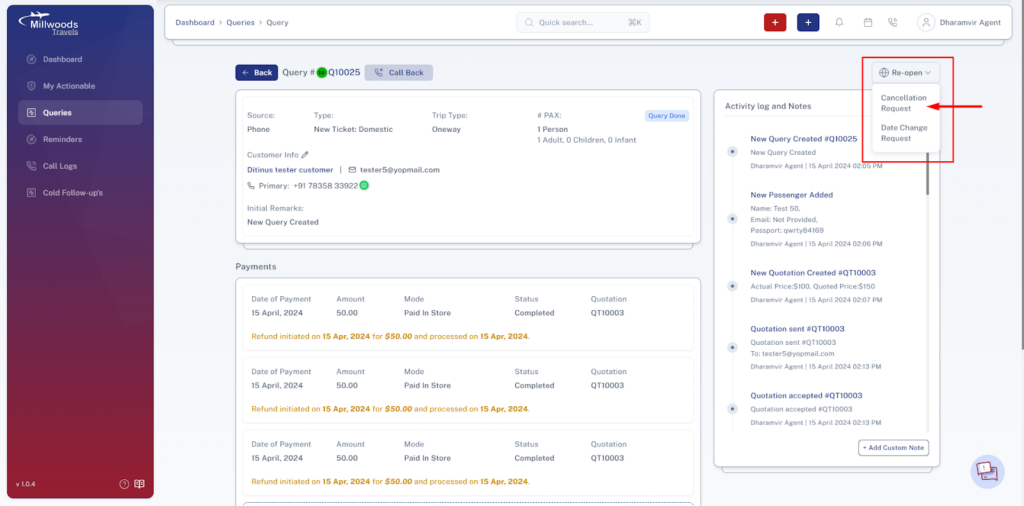
- Click on “Reopen” dropdown (top-right)
- Select “Cancellation Request”
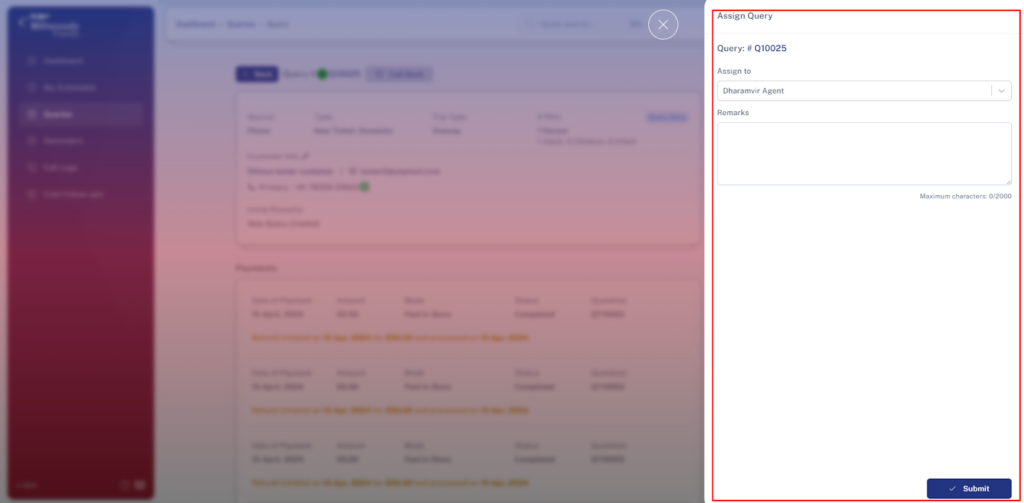
- A side panel opens:
- Assign to Manager/Admin
- Enter remarks
- Click Submit
One-Line Explanation
- Reopen Dropdown → Used to reopen completed queries
- Cancellation Request Option → Starts cancellation workflow
- Remarks Field → Add reason for cancellation
5. Initiate Cancellation Payment
After submission:
- Open Sent Quotation Section
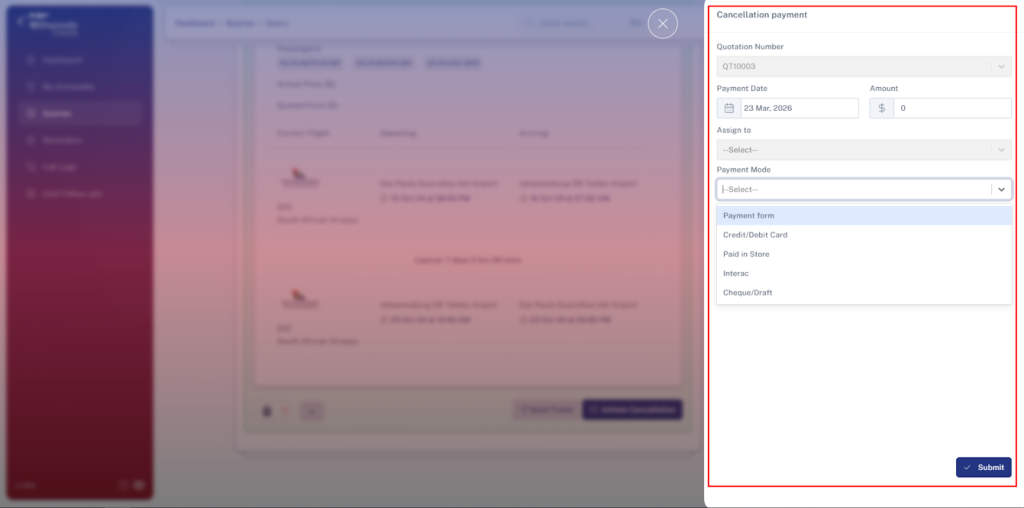
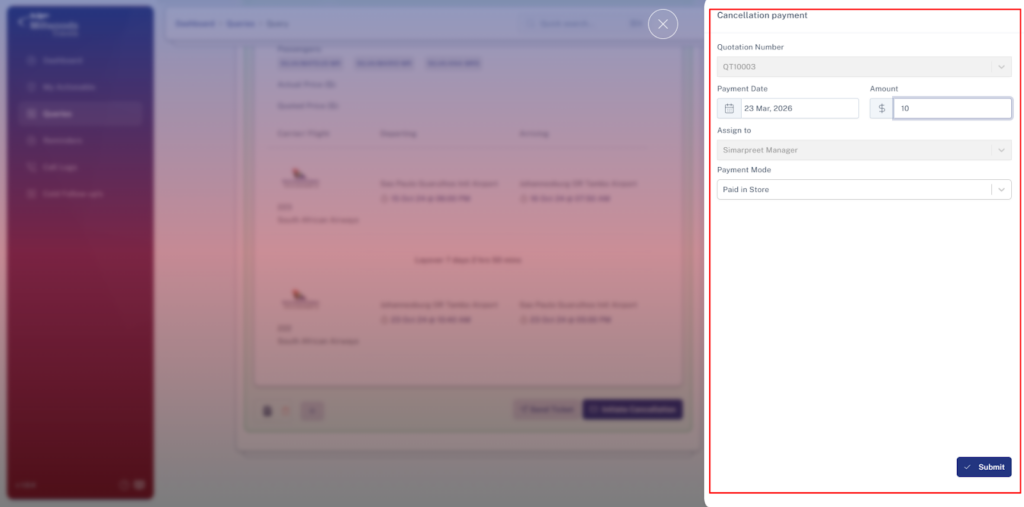
- Click “Initiate Cancellation”
- Enter:
- Payment Date
- Cancellation Amount
- Payment Method
- Submit
One-Line Explanation
- Cancellation Amount → Charge applied for cancellation
- Payment Method → Mode of payment (Cash/Online/etc.)
6. Initiate Refund (After Manager Approval)
Once manager completes payment:
- Click “Initiate Refund” (Enabled Button)
- Enter:
- Refund Date
- Refund Amount
- Submit
One-Line Explanation
- Refund Amount → Amount returned to customer
- Refund Date → Date refund is processed
7. Complete Refund
- Select “Complete Refund” option
- Enter refund completion date
- Click Complete Refund
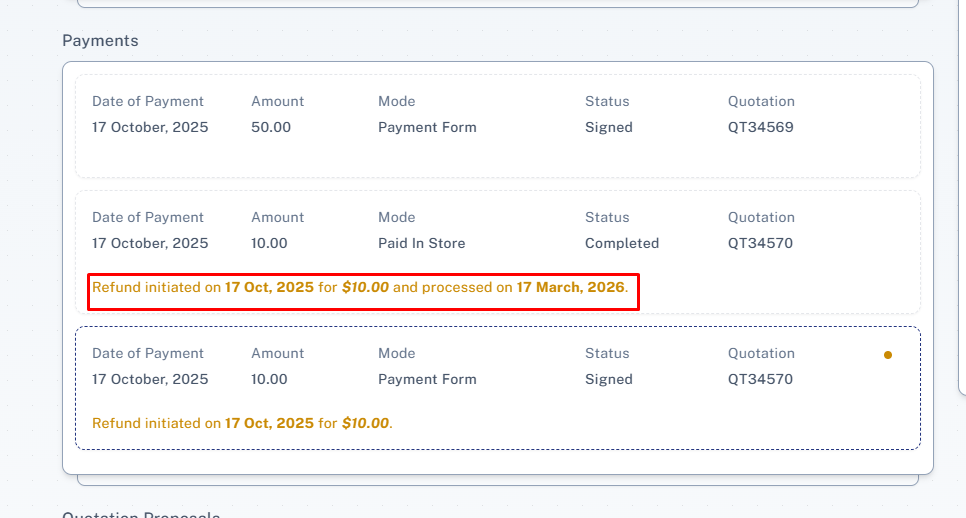
Final Result
- Query status becomes Closed
- Booking status becomes Cancelled
Daily Usage
- Handle cancellation requests promptly
- Ensure correct charges and refund values
- Follow up after manager approval to complete refund
Important Notes
- Refund can only be initiated after manager marks payment as complete
- Incorrect amounts may cause financial discrepancies
- Always add clear remarks for tracking
PART 2: DATE CHANGE REQUEST FLOW
8. When to Use Date Change
Use this when:
- Customer wants to reschedule travel dates
9. How to Raise Date Change Request
Step-by-Step
- Open Query Details Page
- Click Reopen Dropdown
- Select “Date Change Request”
- In side panel:
- Assign to Manager/Admin
- Enter new travel date
- Add remarks
- Click Submit
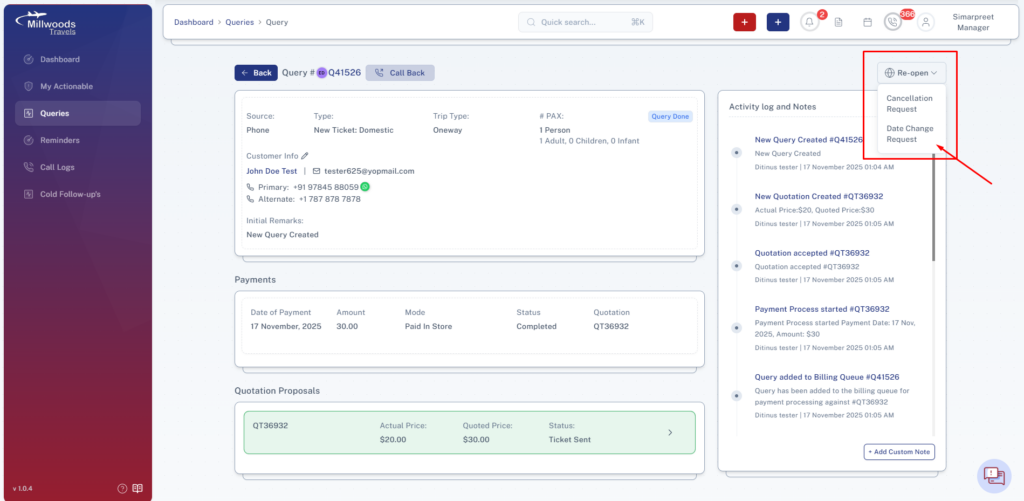
One-Line Explanation
- New Travel Date → Updated travel schedule
- Remarks → Reason for date change
10. After Submission
- Query gets reopened
- Agent can:
- Create new quotation
- Continue booking flow
Final Result
- Query continues with updated travel date
- Booking follows normal process again
Daily Usage
- Confirm new dates before submitting
- Quickly regenerate quotation to avoid delays