
Call Logs
1. Overview
The Call Logs module helps agents track all incoming and outgoing calls, view call details, and ensure that remarks are added for proper documentation and follow-up.
It acts as a centralized system for managing call history and linking calls to queries.
2. Access for Agents
| Feature | Access |
| View Own Call Logs | Allowed |
| View Call Details | Allowed |
| Add Remarks | Allowed |
| Access Pending Remarks Queue | Allowed |
| View Other Users’ Logs | Not Allowed |
3. Call Logs Dashboard
Step-by-Step
- Navigate to the side panel
- Click on “Call Logs”
- The Call Logs dashboard opens
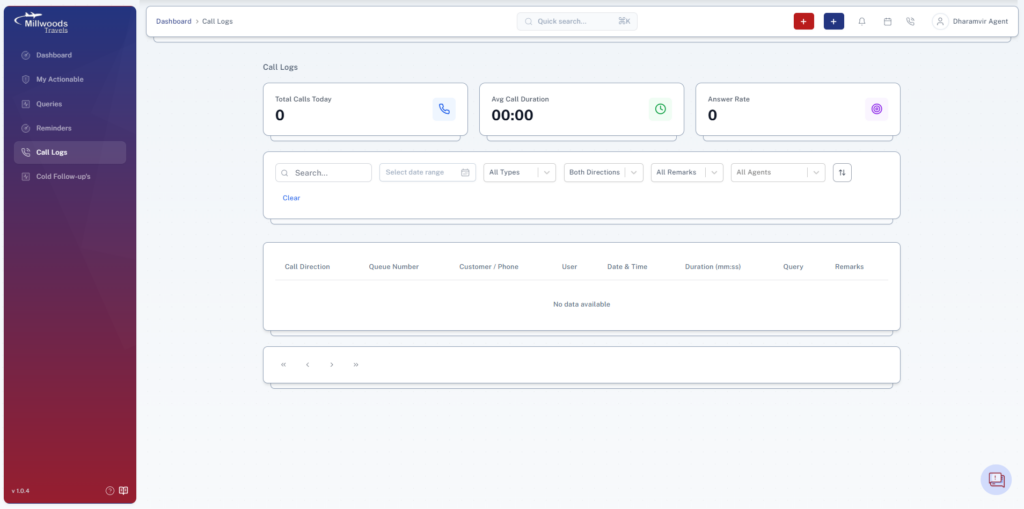
What You See
- Total Calls Today: Total number of calls handled
- Avg Call Duration: Average time spent per call
- Answer Rate: Percentage of answered calls
- Call Listing: Displays detailed call records
4. Filtering Call Logs
Agents can filter call logs using:
- Search: Find specific calls quickly
- Date Range: Filter calls by time period
- Call Type: Filter based on type of calls
- Direction: Inbound or outbound calls
- Remarks Filter: Identify calls with pending remarks
5. Understanding Call Logs Table
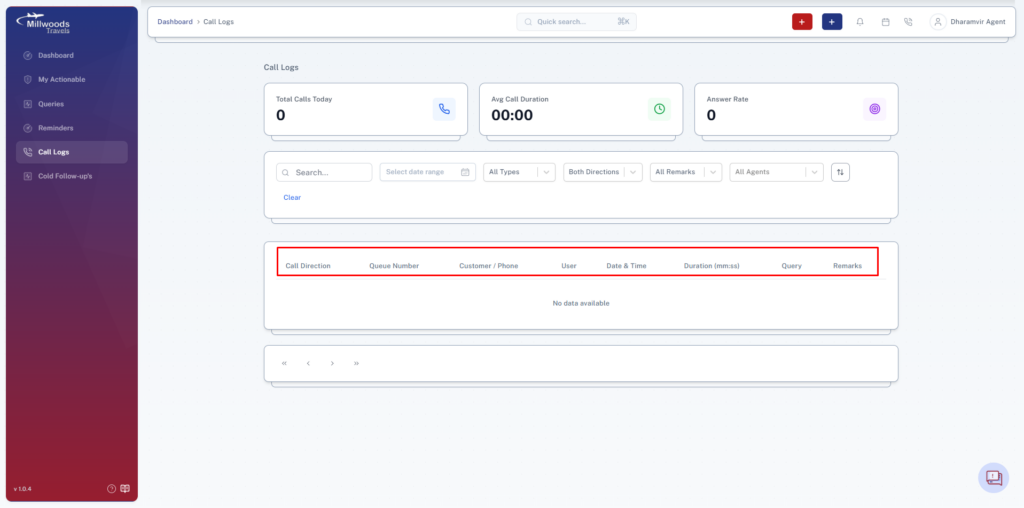
Each row in the table includes:
- Call Direction: Indicates inbound or outbound call
- Queue Number: System-generated call queue reference
- Customer/Phone: Caller details
- User: Agent handling the call
- Date & Time: When the call occurred
- Duration: Length of the call
- Query: Linked query (if created)
- Remarks: Status of remarks (Pending/Updated)
6. Viewing Call Details
Step-by-Step
- Click on any call log entry
- Call Details page opens
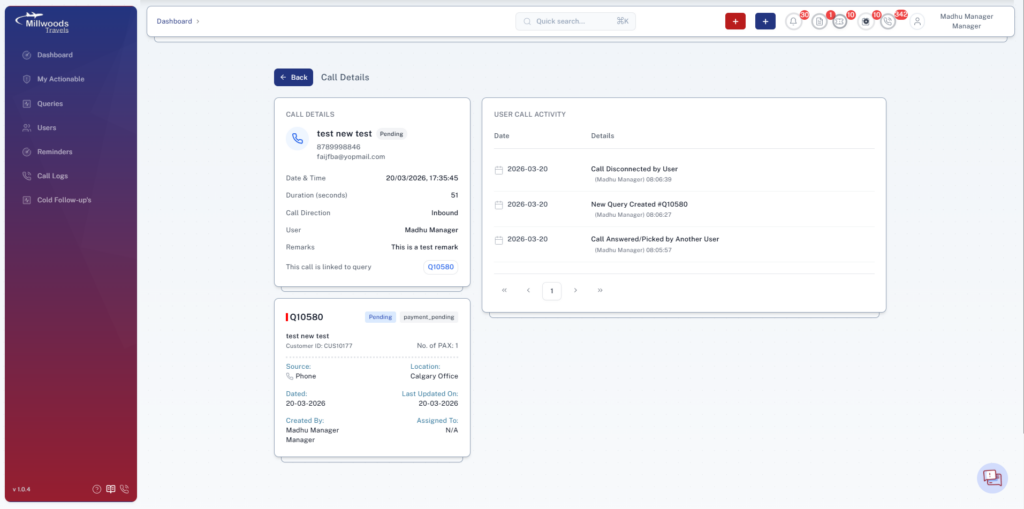
What You See
- Caller information
- Call duration and direction
- Assigned user
- Remarks
- Linked query
- User call activity timeline
Explanation
- Call Details: Full information about the call
- Remarks: Notes added by agent
- Linked Query: Query associated with the call
- Activity Timeline: Shows actions during the call
7. Adding Remarks
Agents are required to add remarks for calls attended.
How to Add Remarks
- Enter remarks post-call from the pending remark queue
- Save
8. Pending Remarks Queue
How to Access
- Click the call icon in the header bar
- A side panel opens, showing pending remarks
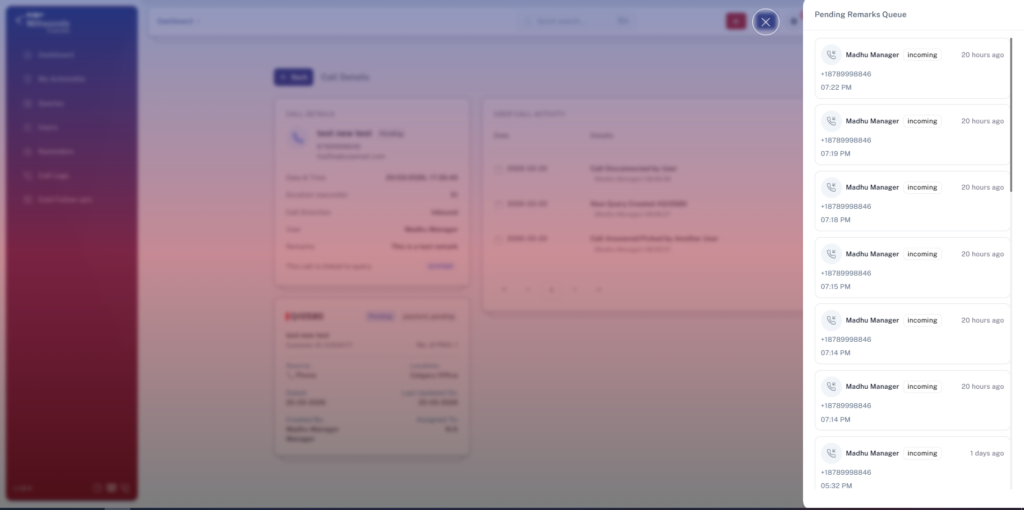
What You See
- List of calls with missing remarks
- Caller details
- Call time
- Assigned user
Actions Available
- Pending Queue: Displays calls requiring remarks, which, upon clicking
Daily Usage
- Check call logs regularly
- Add remarks immediately after calls
- Use filters to track specific calls
- Clear the pending remarks queue
Important Notes
- Remarks are mandatory for proper tracking
- Calls without remarks remain in the pending queue
- Linking calls to queries improves traceability