
Reminders Flow
This is the most important part for managing follow-ups and scheduled tasks.
Step 1: Access Reminders Module
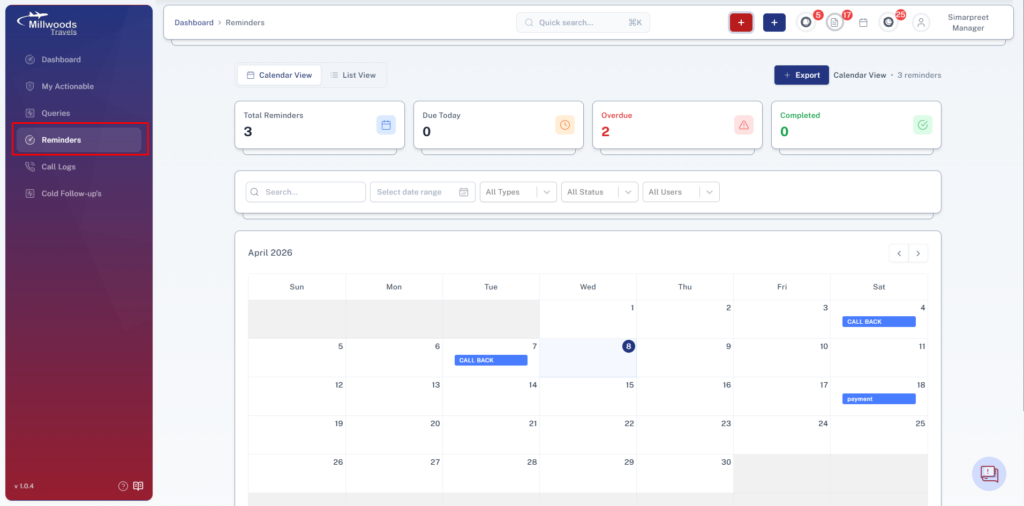
Navigate to the Reminders module from the side panel.
This opens the calendar view with all scheduled reminders.
Step 2: View Reminders
Reminders are displayed in calendar format with filters and list/card view options.
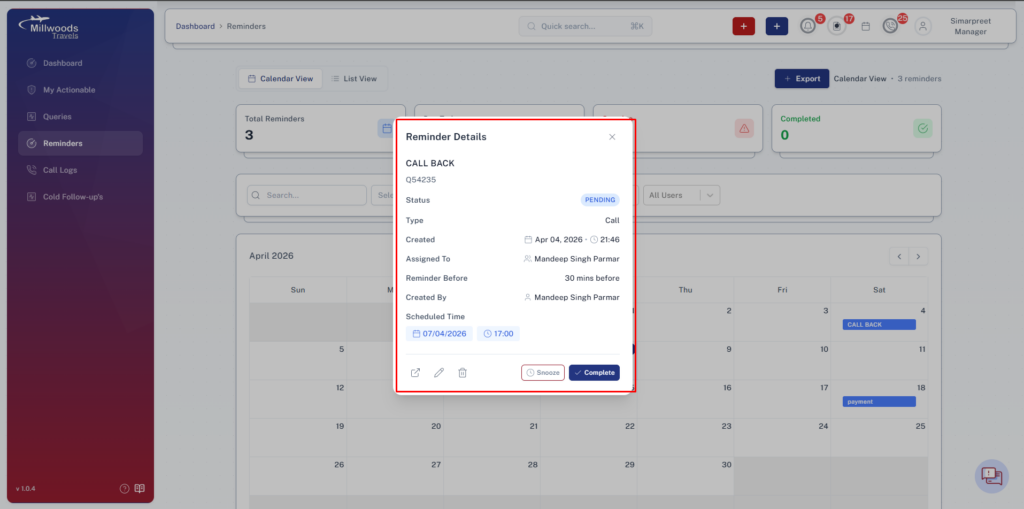
Click on any reminder event
→ Opens detailed view in a popup
Step 3: Create New Reminder
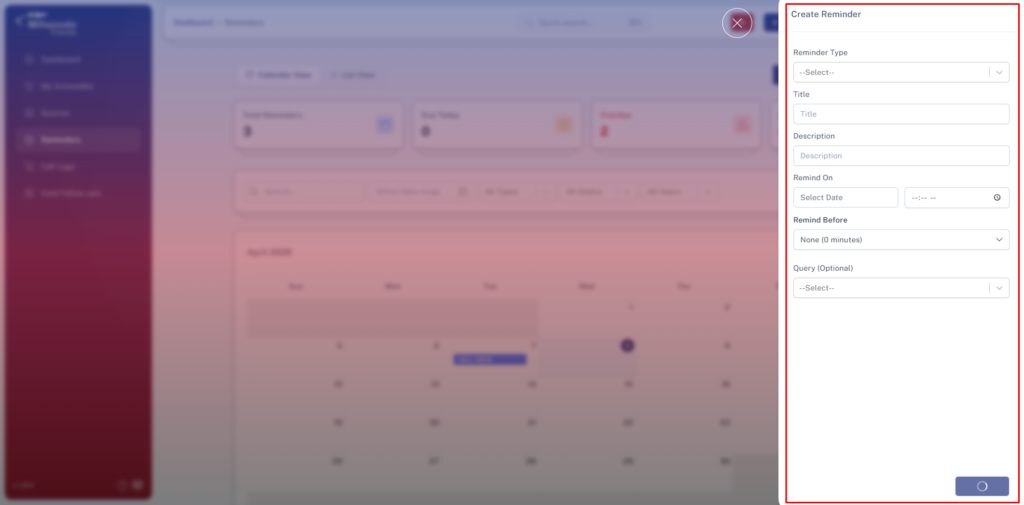
Click on New Reminder button.
Fill the following:
Query → Select query (optional)
Title → Enter reminder title
Description → Add details
Remind On → Select date & time
Remind Before → Time in minutes
Reminder Type → Select type
Submit to create reminder
Step 4: Access Reminder Queue
Click on the Reminder icon in the navigation bar.
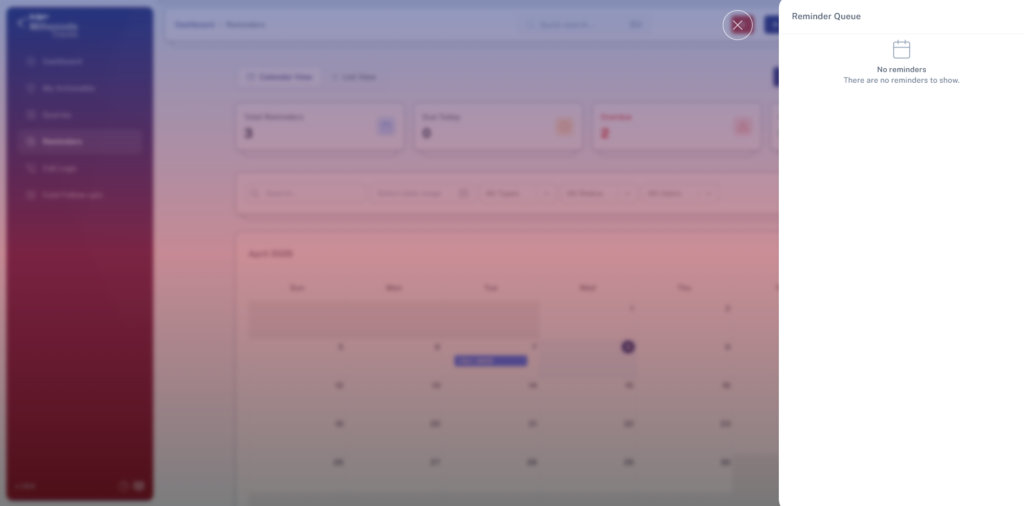
This opens the reminder queue panel.
Step 5: Manage Reminder Queue
Queue shows:
- Past 12 hours reminders
- Upcoming 12 hours reminders
Actions available:
Mark as Complete →
- Add remarks
- Removes reminder from queue
Snooze →
- Select snooze duration
- Reschedules reminder
Step 6: Handle Reminder Alerts
When a reminder is due:
- A floating alert appears on screen
- Audio alert continues until action is taken
Click on alert → Opens reminder details
Actions available:
- Mark as Complete
- Snooze
Step 7: Reports & Analytics
Managers can:
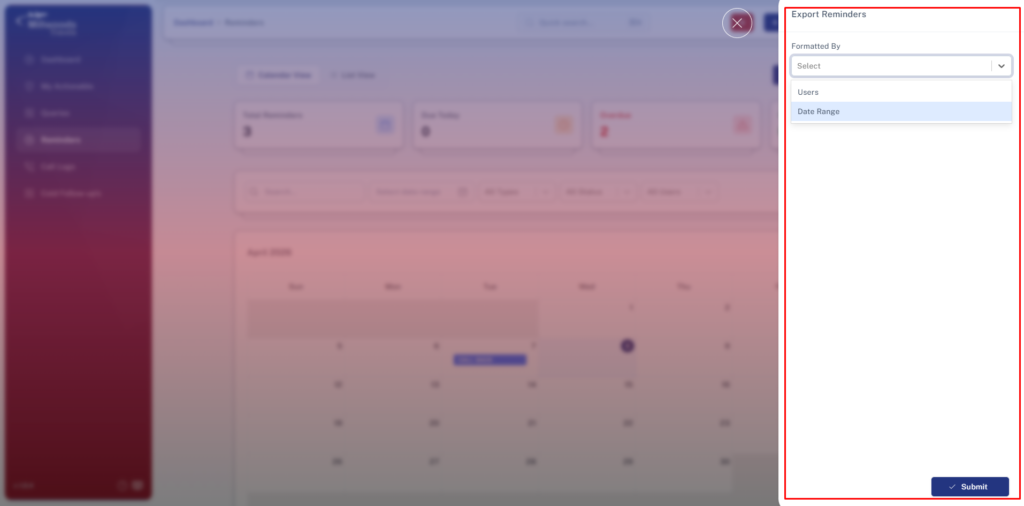
- Export reminder reports
- Filter reports by user
- View historical data (up to 3 months)
- Access analytics dashboard
Step 8: Permissions & Control
Managers can:
- View all reminders
- Perform all actions (create, edit, delete, complete, snooze)
All updates are reflected to assigned users in real-time.
Daily Usage Guide
- Monitor reminder queue regularly
- Ensure timely completion of reminders
- Review missed or snoozed reminders
- Track team follow-up efficiency
Best Practices
- Add clear descriptions while creating reminders
- Use snooze only when necessary
- Avoid missing high-priority reminders
- Regularly review reminder reports and analytics