
Call Logs and Analytics
This is the most important part for monitoring calls, tracking performance, and analyzing communication data.
Step 1: Access Call Logs Module
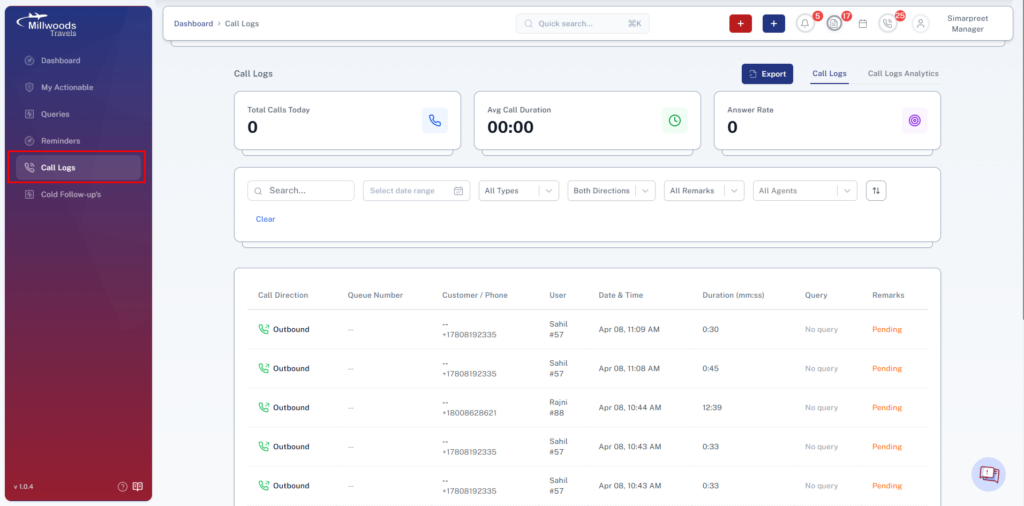
Navigate to the Call Logs module from the side panel.
This opens the complete list of all call records.
Step 2: View Call Logs
View all call records including:
- Incoming calls
- Outgoing calls
Each record shows:
- Caller details
- Call duration
- Call type
- Date & time
Step 3: Filter Call Logs
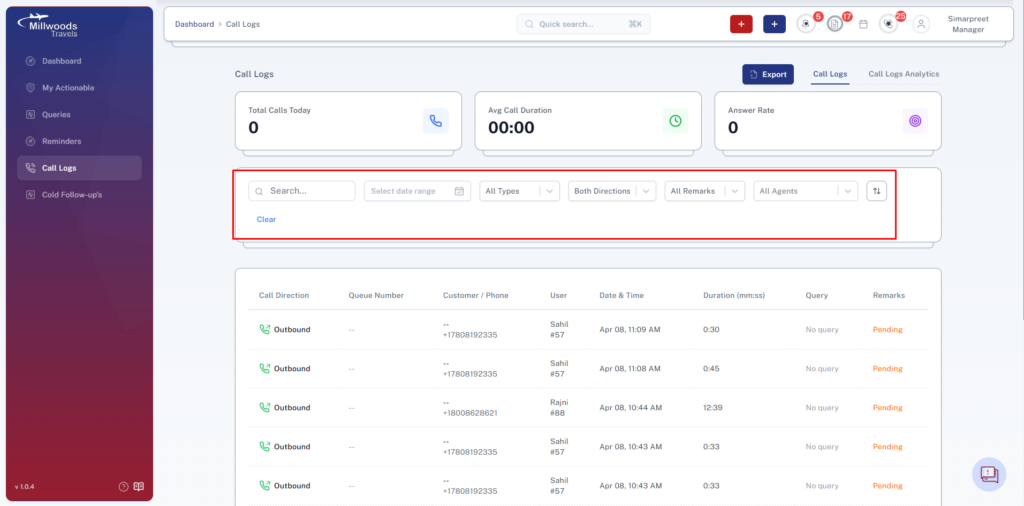
Managers/Admins can apply filters to refine data:
Filter by:
- User (Agent/Manager)
- Call Type (Incoming/Outgoing/Missed)
- Date Range
- Duration
This helps in analyzing individual or team performance.
Step 4: View Call Details
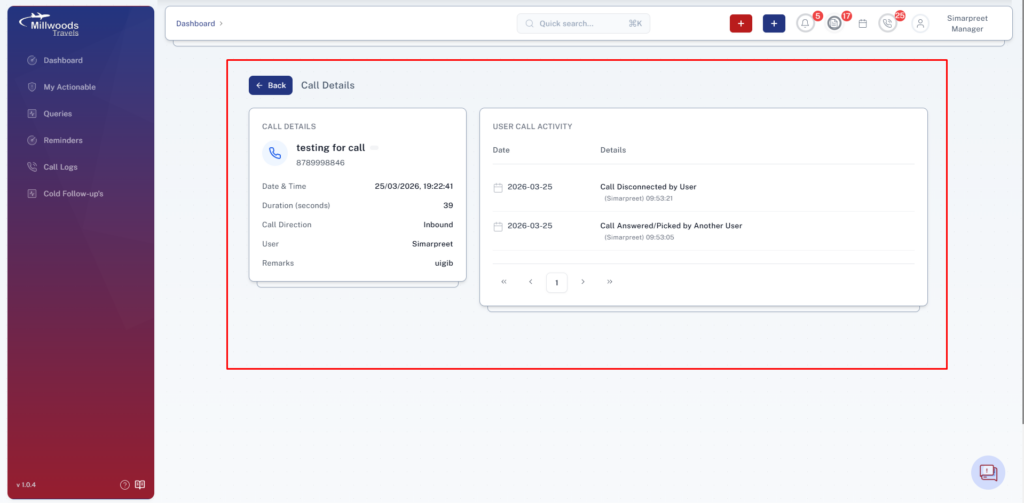
Click on any call record
→ Opens detailed view
Details include:
- Full call information
- Call timeline
- Associated query (if available)
Step 5: Identify Relevant Calls
System automatically:
- Hides pure internal calls (Agent to Agent without customer)
- Displays only customer-related calls and transfers
This ensures cleaner and more relevant data.
Step 6: Access Call Analytics Dashboard
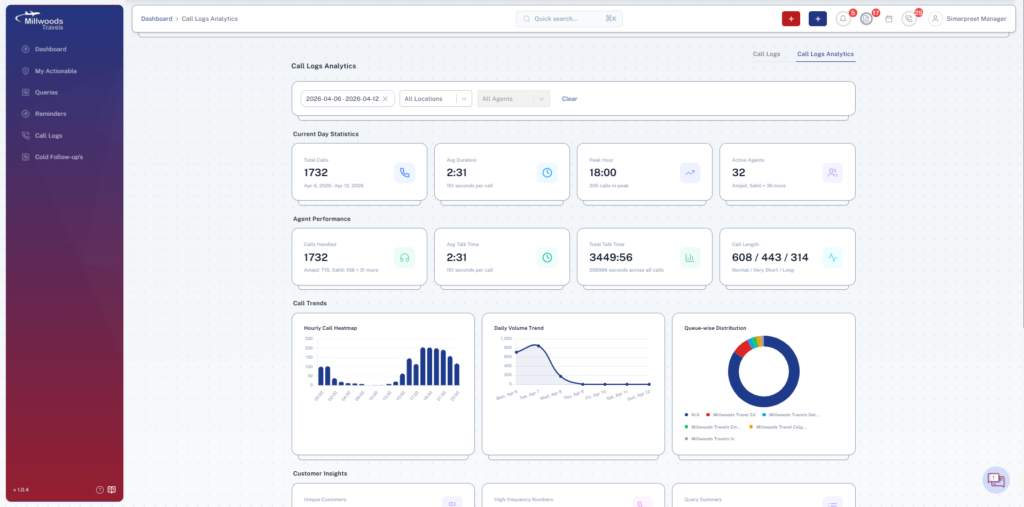
Navigate to Call Analytics Dashboard.
Managers/Admins can view:
- Total calls handled
- Missed vs answered calls
- Average call duration
- Agent-wise performance
- Peak call hours
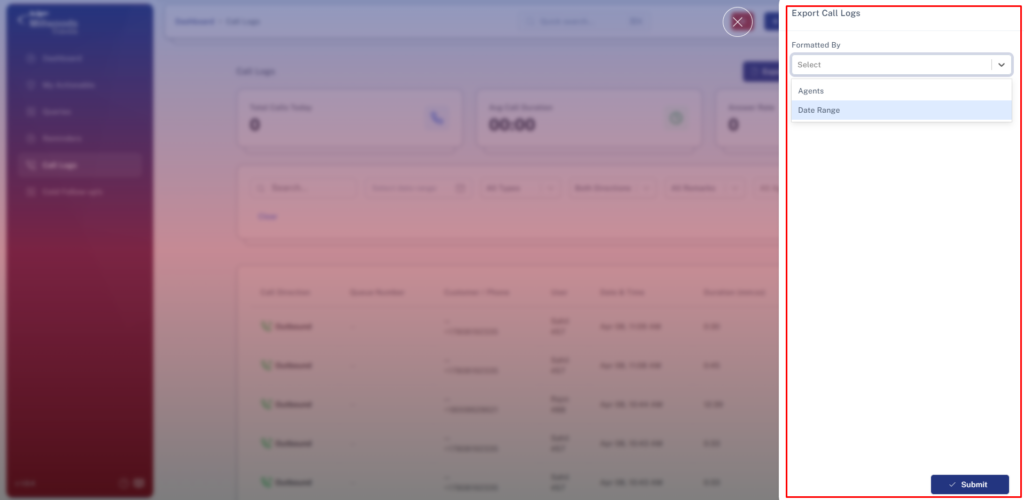
Step 7: Export & Reporting
Managers/Admins can:
- Export call logs
- Generate reports
- Use data for performance reviews
Step 9: Permissions & Control
Managers/Admins have:
- Access to all call logs
- Ability to filter by any user
- Visibility into complete call data
- Access to analytics dashboard
Daily Usage Guide
- Monitor call logs regularly
- Track missed calls and ensure follow-ups
- Use filters to review individual performance
- Analyze daily call trends
Best Practices
- Focus on customer-related calls only
- Use analytics for decision making
- Regularly review agent performance
- Ensure missed calls are addressed promptly
- Use reports for continuous improvement