
Query Creation
Overview
The Create Query function allows users to register a new travel inquiry in the CRM system. Every customer request related to Bookings, Quotation, or Ticketing begins by creating a Query.
This process captures essential information such as the source of the request, customer details, travel itinerary, and passenger information. Once created, the query can be tracked, assigned, and updated through different stages until completion.
Accessing the Create Query Page
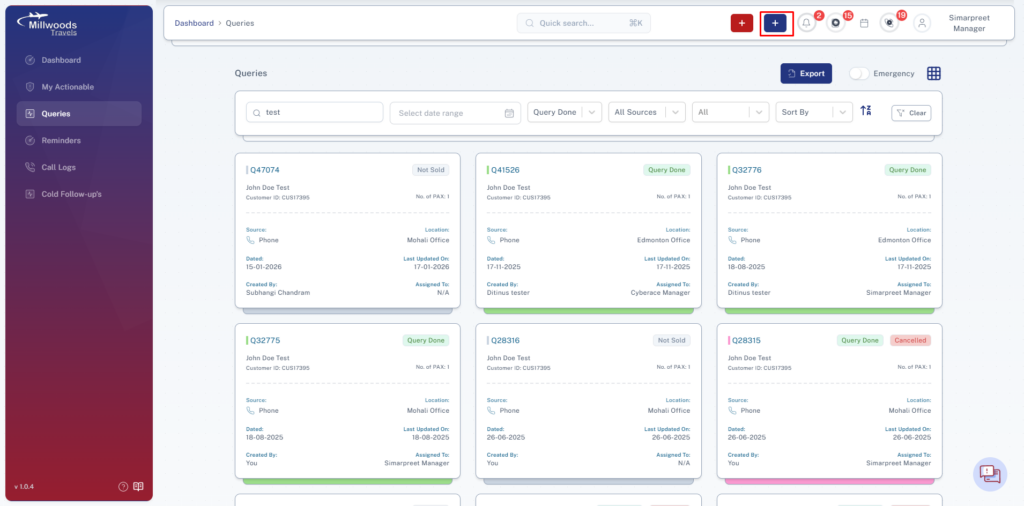
Users can create a new query using the following method:
Method: From the Top Navigation Bar
- Click the Blue (+) button located in the top navigation bar.
- The Create Query form will open.
Create Query Form Fields
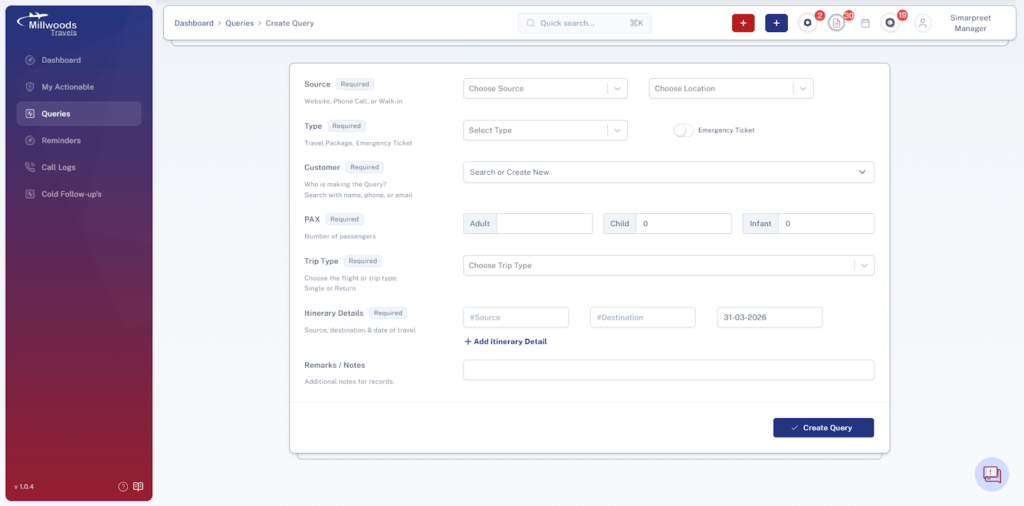
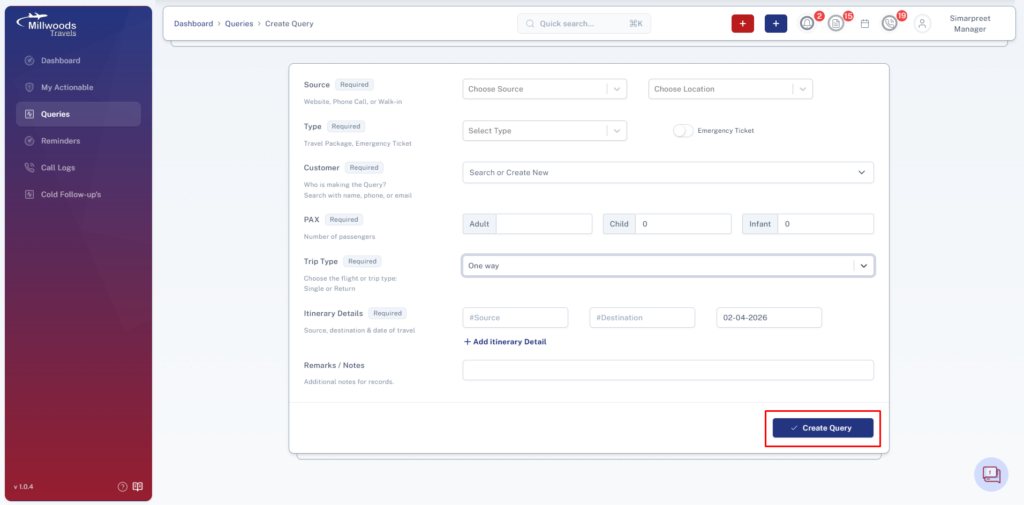
The Create Query form captures all necessary details required to register a travel inquiry.
Source (Required)
This field indicates how the customer inquiry was received.
Available Options
- Website
- Phone Call
- Walk-In
Select the appropriate source from the dropdown list.
Location (Required)
This field indicates for which location the query needs to be created in case more than one location is assigned.
Select the appropriate location from the dropdown list.
Type (Required)
Defines the category of travel request being created.
Available Options
- New Ticket: International
- New Ticket: Domestic
This helps categorize travel requests for reporting and operational purposes.
Emergency Ticket (Optional)
A toggle option that marks the query as urgent.
If enabled, the query may be prioritized by the system or by staff handling urgent travel requests.
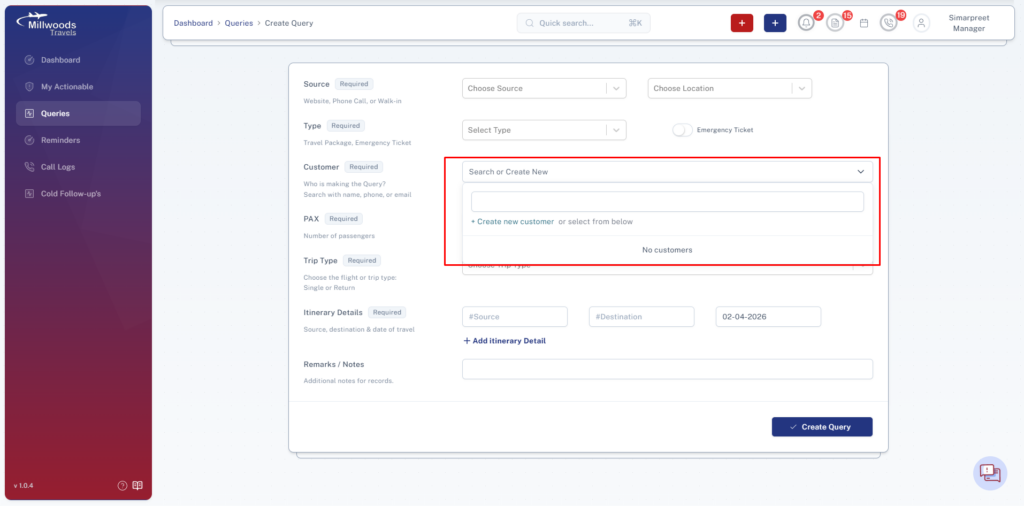
Customer (Required)
Identifies the customer who is making the travel inquiry.
Options Available
Users can either:
- Search for an Existing Customer
- Search using name, phone number, or email.
- Search using name, phone number, or email.
- Create a New Customer
- If the customer does not already exist in the system, users can create a new customer record directly from this field.
- If the customer does not already exist in the system, users can create a new customer record directly from this field.
PAX – Number of Passengers (Required)
Specifies the number of travelers included in the booking request.
The system separates passengers into categories:
| Field | Description |
| Adult | Number of adult passengers |
| Child | Number of child passengers |
| Infant | Number of infant passengers |
This information helps determine pricing and booking requirements.
Trip Type (Required)
Specifies the type of travel request.
Available Options
- One Way
- Return
Selecting the appropriate trip type helps define the travel itinerary.
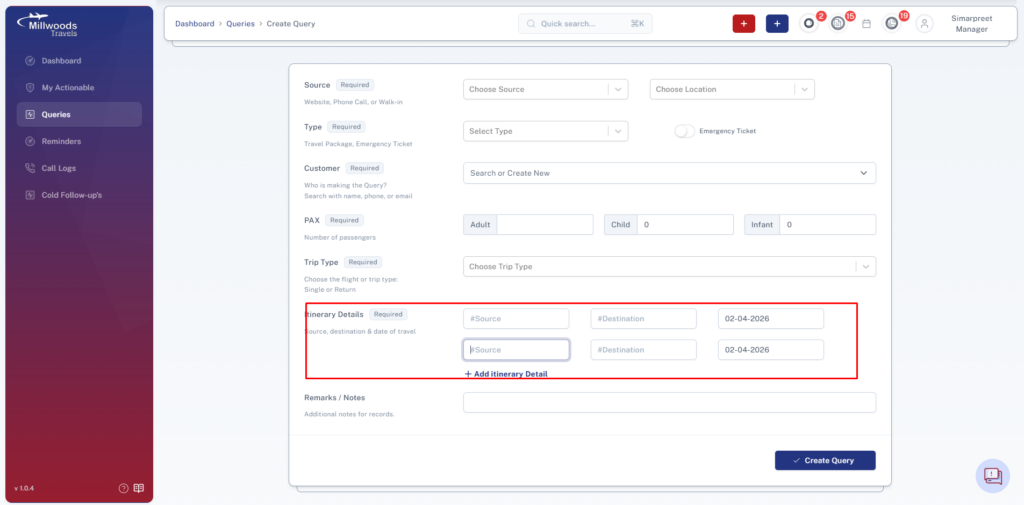
Itinerary Details (Required)
This section captures the travel route and schedule.
Fields Included
| Field | Description |
| Source | Departure location |
| Destination | Arrival location |
| Travel Date | Date of travel |
Add Multiple Itinerary Segments
Users can click + Add Itinerary Detail to add additional travel segments if the trip involves multiple legs.
Example:
- Delhi → Toronto
- Toronto → Vancouver
Remarks / Notes
This optional field allows users to enter additional notes or comments regarding the travel request.
Examples may include:
- Customer preferences
- Airline preferences
- Special instructions
- Follow-up notes
Creating the Query
After entering all required details:
- Review the information entered in the form.
- Click the Create Query button.
- The system will generate a unique Query ID and store the query in the Queries module.
What Happens After Creating a Query
Once a query is created:
- The system assigns a unique Query Number.
- The query appears in the Queries Module Listing.
- It may be assigned to a user for follow-up.
- The query lifecycle begins (quotation, follow-up, payment processing, etc.).
Best Practices
- Ensure customer details are accurate before creating the query.
- Always select the correct source for proper reporting.
- Verify the number of passengers (PAX) before submission.
- Include relevant information in remarks to help other team members understand the request.
- Use the Emergency Ticket toggle only for urgent travel cases.