
Queries Guide
Overview
The Queries Module is the central component of the Millwoods Travel CRM where all customer travel inquiries are recorded, managed, and tracked. Every travel request received through different sources is stored as a Query, allowing users to follow the entire lifecycle of a customer’s travel request—from initial inquiry to completion or closure.
This module allows users to:
- View and manage all customer queries.
- Track the status of travel requests.
- Monitor follow-ups and updates.
- Filter and search queries efficiently.
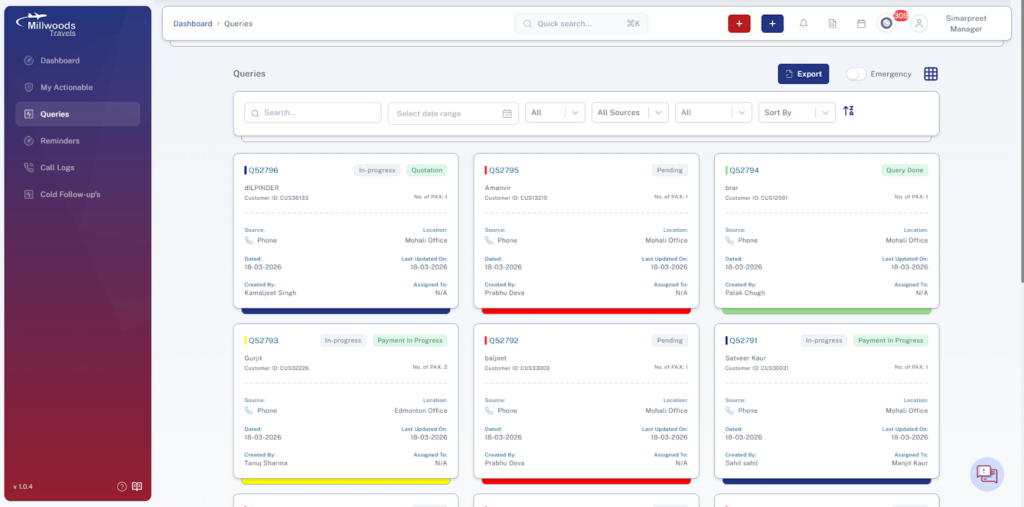
Accessing the Queries Module
- Log in to the CRM system.
- From the left navigation panel, click Queries.
- The system will display the Query Listing Page containing all available queries.
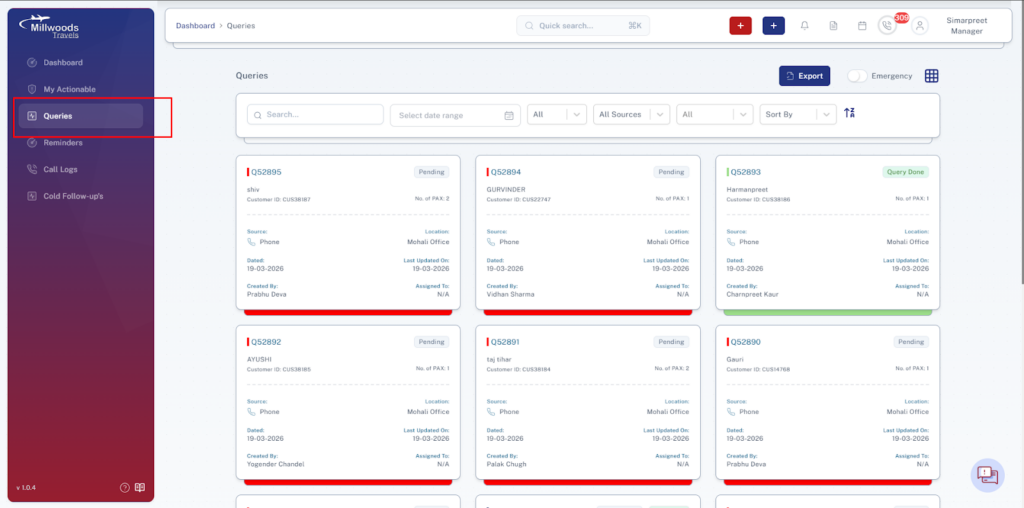
Query Listing Page
The main screen of the Queries module displays all queries in a card-based layout. Each card represents an individual query and provides quick access to key information related to that travel request.
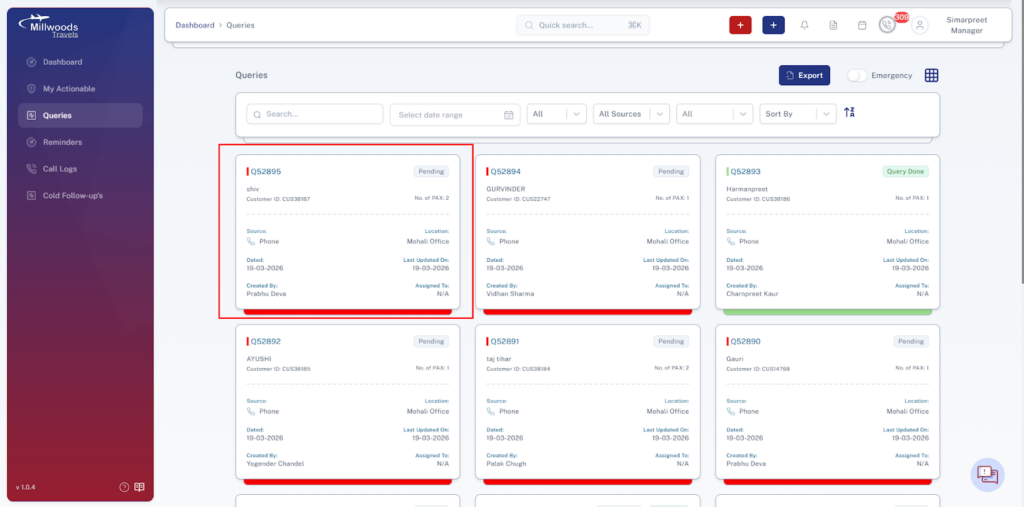
Each query card shows important details such as:
| Field | Description |
| Query ID | Unique identifier assigned to the query |
| Customer Name | Name of the customer who raised the query |
| Customer ID | System-generated identifier for the customer |
| Number of PAX | Number of passengers included in the travel request |
| Source | Source through which the query was received (e.g., Phone) |
| Location | Office location associated with the query |
| Query Date | Date when the query was created |
| Last Updated On | Most recent update made to the query |
| Created By | User who created the query |
| Assigned To | User responsible for handling the query |
| Query Status | Current progress status of the query |
Search and Filters
At the top of the query listing page, users can apply multiple filters to quickly locate specific queries.
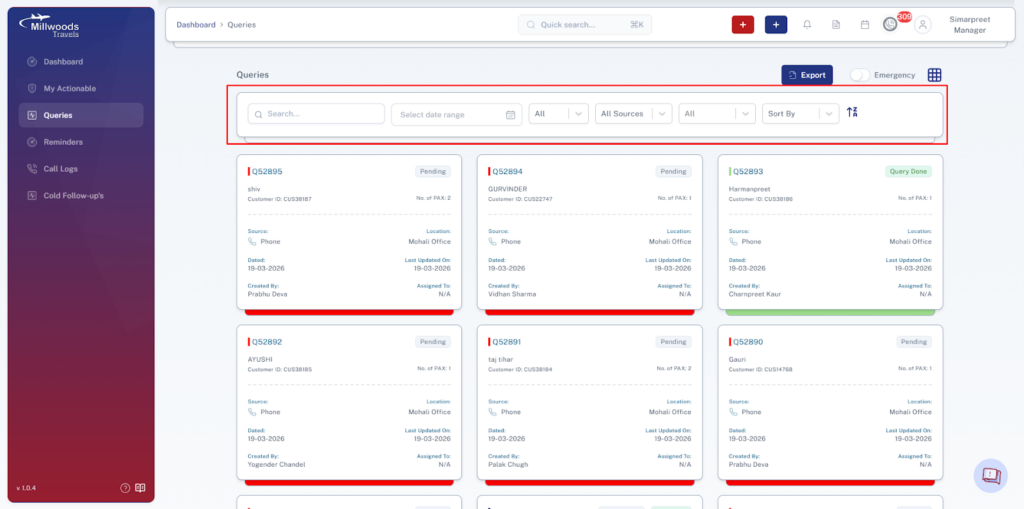
Available Filters
| Filter | Description |
| Search Bar | Allows users to search queries using keywords such as customer name or query ID |
| Date Range | Filters queries based on the selected date range |
| Query Status Filter | Filters queries based on their current status |
| Source Filter | Filters queries based on their source (e.g., Phone, Web, Referral) |
| Additional Filters | Allows further filtering based on system-defined parameters |
| Sort By | Sort queries based on different criteria such as date or status |
These filters help users efficiently locate and manage large numbers of queries.
Export Function
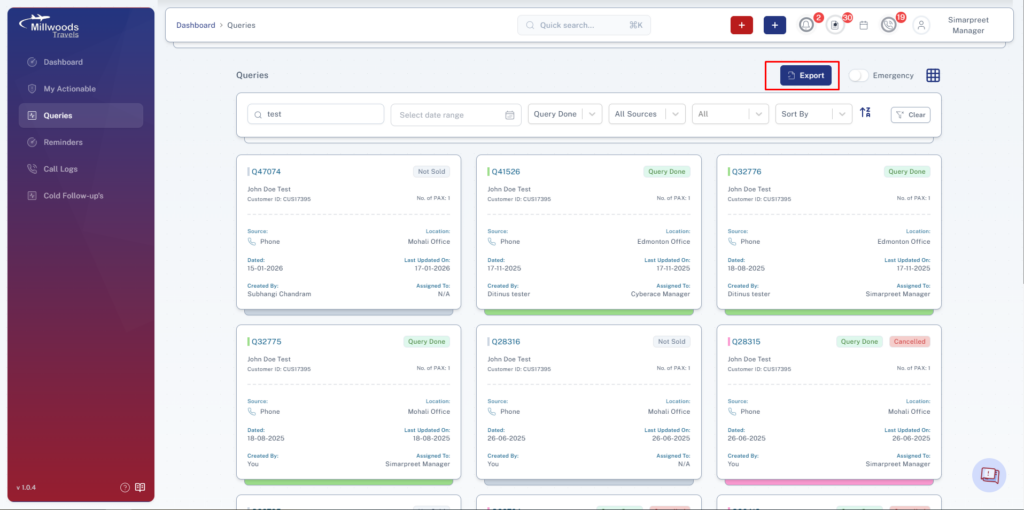
The Export button allows users to export the query listing for reporting or analysis purposes.
Steps to Export Queries
- Apply the required filters if necessary.
- Click the Export button.
- The system will generate a downloadable file containing the filtered query data.
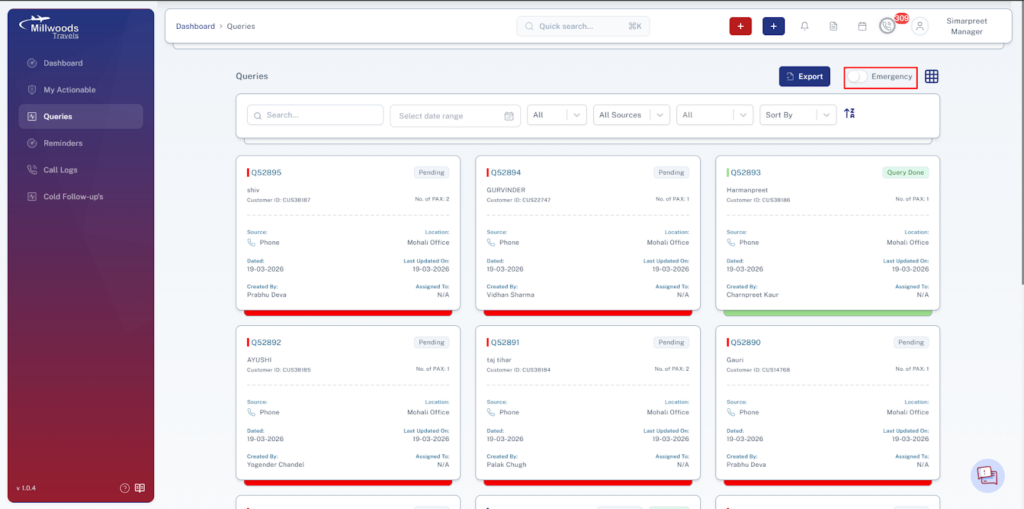
Emergency Toggle
The Emergency toggle allows users to highlight or prioritize queries that require urgent attention. When enabled, the listing may focus on urgent or high-priority queries depending on system configuration.
Query Status Indicators
Each query card displays status labels that indicate the current stage of the travel request.
Examples include:
- Pending
- In-progress
- Quotation
- Payment in Progress
- Query Done
- Not Sold
These labels help users quickly identify the progress of a query.
Query Activity Legend
At the bottom of the page, the system displays a color-coded legend that helps users quickly understand the type or stage of each query based on the colored indicator shown on the query card.
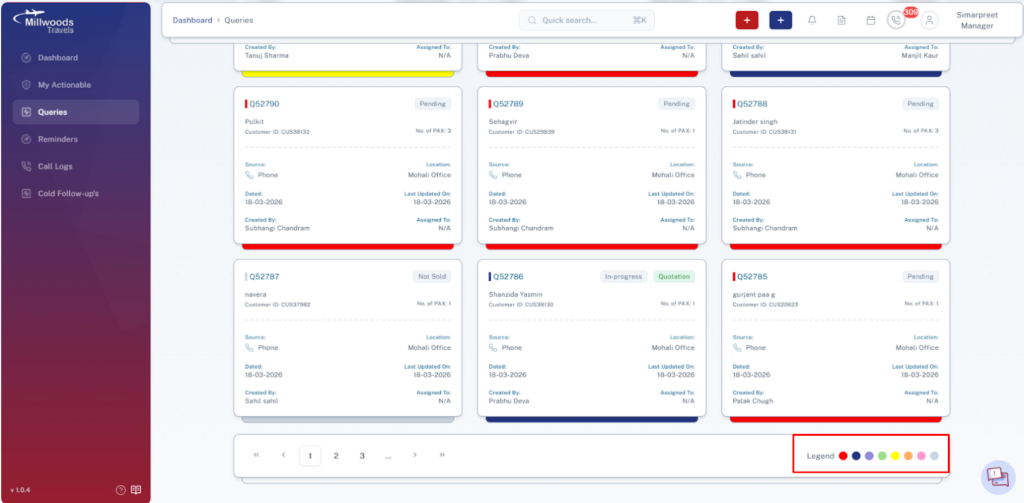
| Color | Meaning |
| Red | New Query |
| Dark Blue | Follow-up |
| Light Blue | Cold Follow-up |
| Green | Action Completed |
| Yellow | Assigned to Billing |
| Orange | Reopened Query |
| Pink | Cancelled Query |
| Grey | Not Sold |
These visual indicators help users quickly identify the current state of queries without opening each record.
Purpose of the Queries Module
The Queries module enables users to:
- Manage the complete lifecycle of customer travel inquiries.
- Track query status and progress.
- Monitor follow-ups and customer engagement.
- Organize travel request information efficiently.
Best Practices
- Use filters and search to quickly locate specific queries.
- Regularly update query statuses to reflect the latest progress.
- Monitor color indicators in the legend for quick status identification.
- Use the Export feature for reporting or management review.
- Ensure queries are assigned to appropriate users for timely handling.