
Internal Chat Workflow
This is the most important part for internal communication, coordination, and query discussions.
Step 1: Access Chat Module
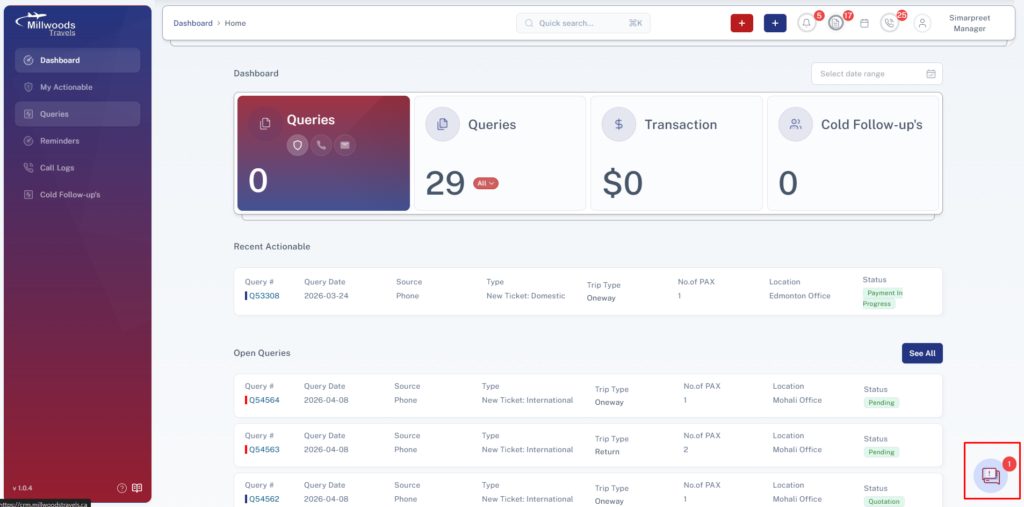
Navigate to the Internal Chat module from the button provided.
This opens the chat interface with user list and conversations.
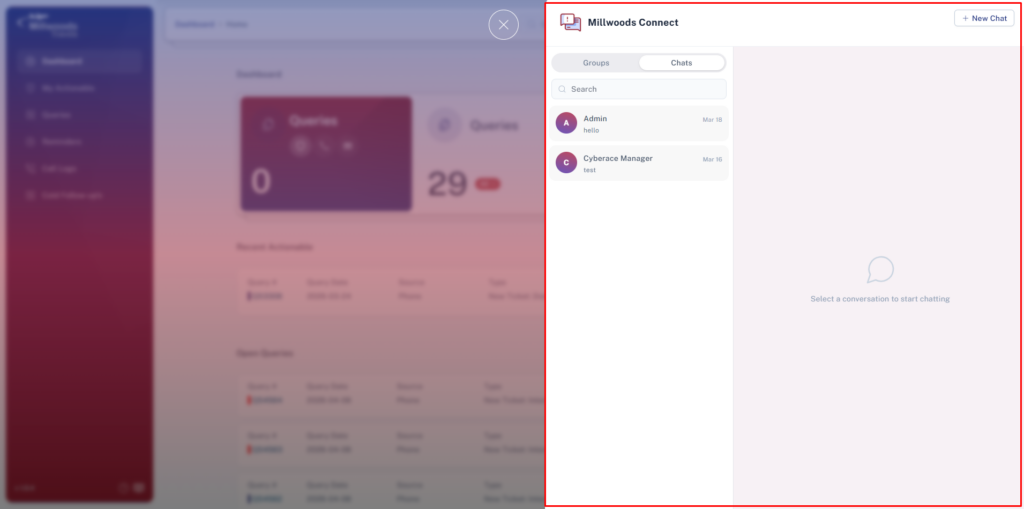
Step 2: View Conversations
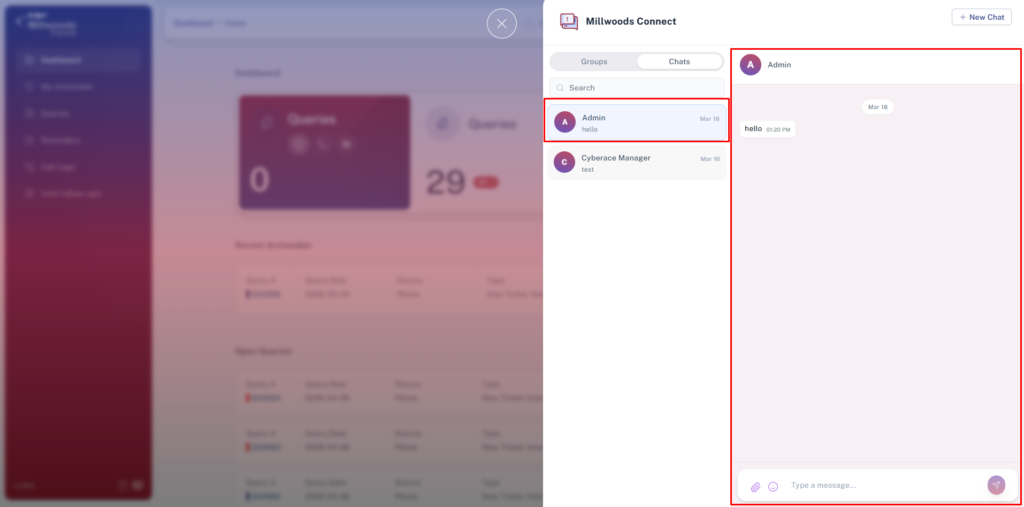
View all ongoing conversations in the chat list.
Select a user or group
→ Opens chat window with message history
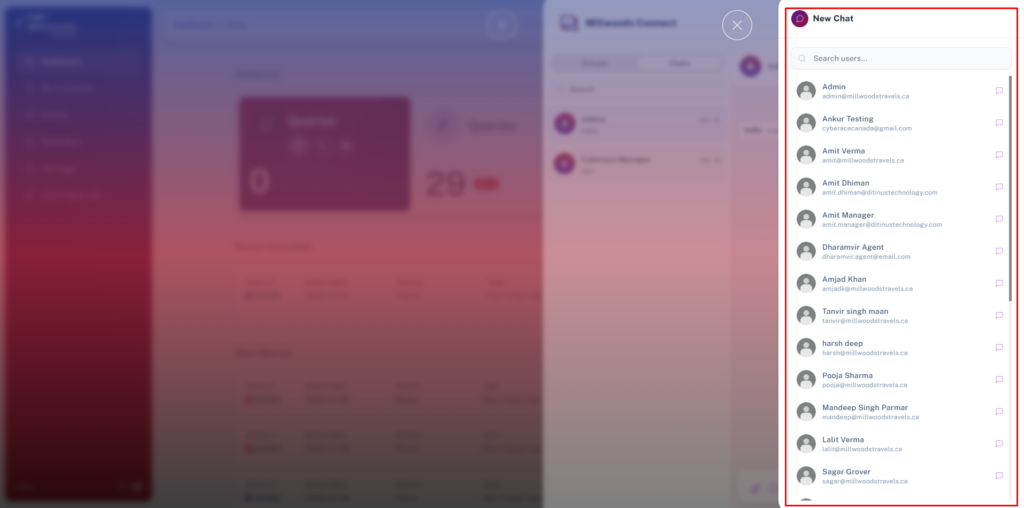
Step 3: Start New Chat
Click on New Chat / Select User.
Choose:
- Individual Agent
- Multiple Users (Group Chat)
Start conversation
Step 4: Send Messages
Type a message in the chat input box
→ Press Enter / Send
Managers can:
- Send text messages
- Share updates related to queries
- Communicate instructions to agents
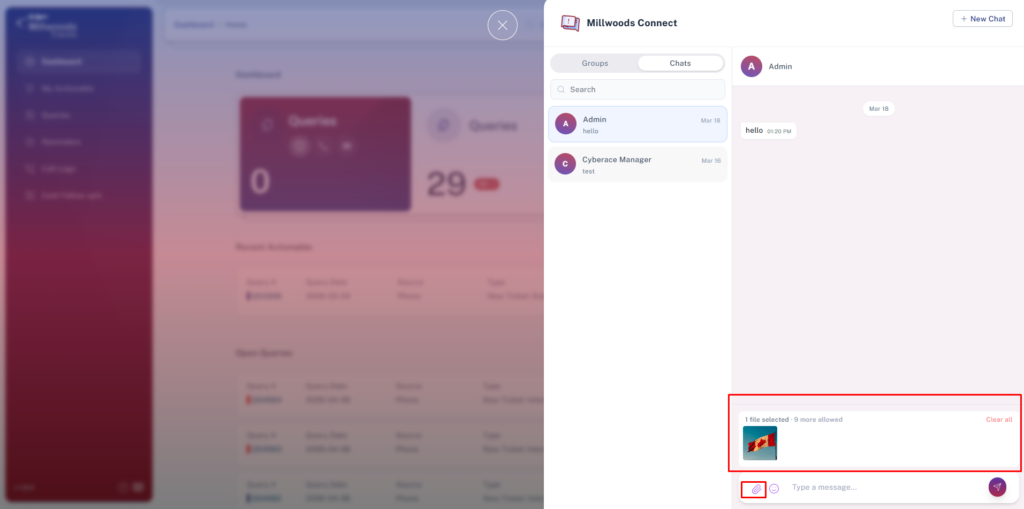
Step 5: Attach Files & Documents
Click on Attachment icon
Upload:
- Documents
- Images
- Tickets or related files
Step 6: Notifications & Alerts
Receive notifications for:
- New messages
- Mentions or important updates
Click notification
→ Opens relevant chat
Step 7: Best Usage for Managers
Use chat to:
- Provide quick approvals
- Resolve agent queries
- Ensure smooth workflow coordination
- Avoid delays in query processing
Daily Usage Guide
- Monitor important conversations regularly
- Respond promptly to agent queries
- Keep communication clear and concise
- Ensure critical updates are acknowledged
Best Practices
- Maintain professional communication
- Avoid unnecessary messages
- Use attachments for clarity when needed
- Keep discussions relevant to queries
- Provide timely guidance to team members