
Dashboard Guide
1.1 Overview
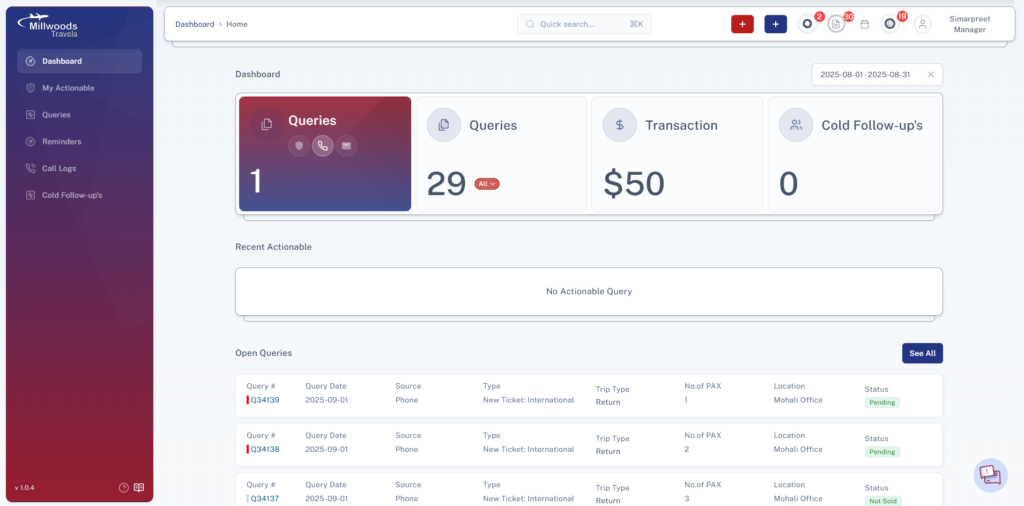
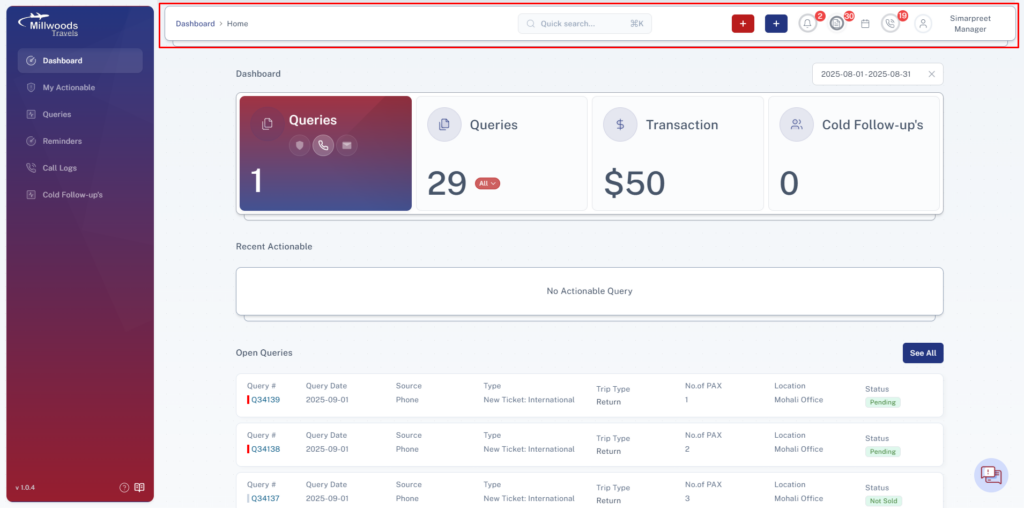
The Dashboard is the main landing page of the Millwoods Travel CRM and provides users with a quick overview of their operational activity. It displays key performance indicators, recent tasks, and query information so that users can quickly understand the current status of their work.
From the dashboard, users can monitor query activity, review assigned tasks, track transactions, and access important system queues such as reminders, billing, and call logs.
1.2 Accessing the Dashboard
- Log in to the CRM system.
- Click Dashboard from the left navigation panel.
- The dashboard screen will load automatically after login and display your current activity overview.
1.3 Dashboard Sections
The dashboard is divided into multiple sections to provide quick insights into query management and user tasks.
1.3.1 Query Statistics Panel
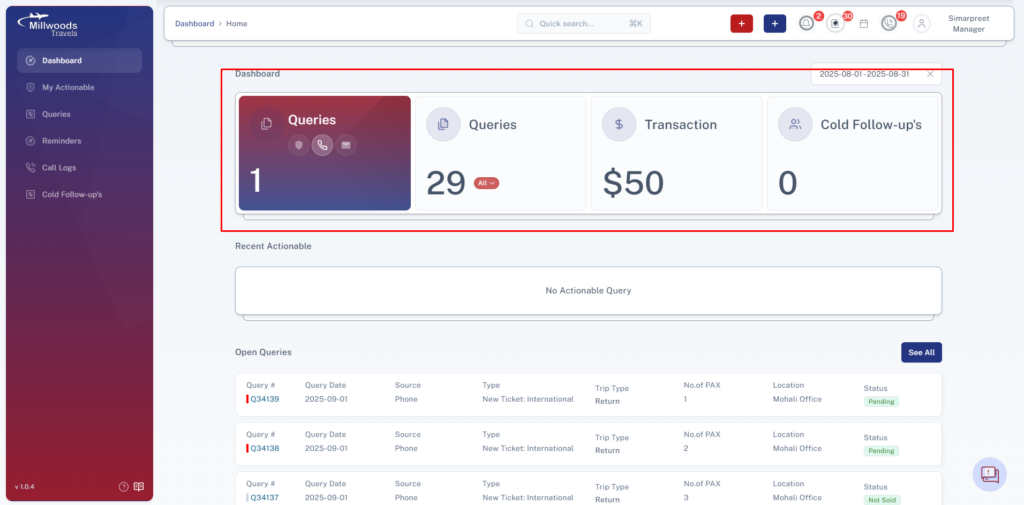
At the top of the dashboard, users can view a summary of query activity through visual cards.
Information Displayed
- Queries by Source
- Displays the number of queries categorized by their source (such as phone, website, referral, etc.).
- Total Queries
- Shows the total number of queries recorded within the selected date range.
- Transactions
- Displays the total monetary value or number of transactions completed for the queries.
- Cold Follow-ups
- Displays the number of queries that have been moved to the cold follow-up stage for future re-engagement.
1.3.2 Date Range Filter
Users can filter dashboard data using a date range selector.
How to Use the Date Range Filter
- Click Select Date Range located on the top-right of the dashboard.
- Choose the desired start and end dates.
- The dashboard statistics will update automatically based on the selected date range.
1.4 Recent Actionable Queries
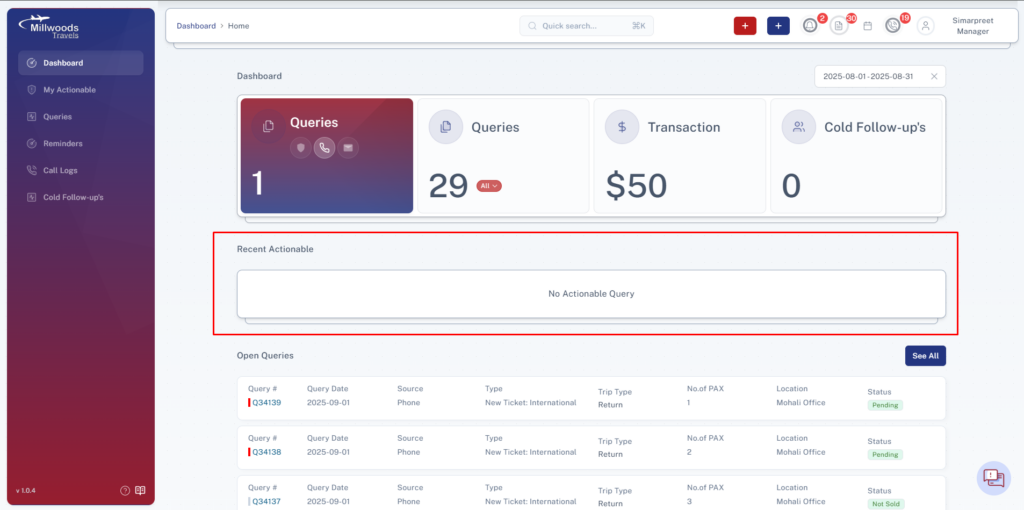
This section displays queries that require immediate attention from the logged-in user.
These queries are typically assigned tasks that need to be completed, such as:
- Following up with a customer
- Sending quotations
- Confirming travel details
- Updating query status
Key Points
- Only queries assigned to the current user appear here.
- Helps users quickly identify pending tasks.
- Ensures important actions are not missed.
1.5 Open Queries
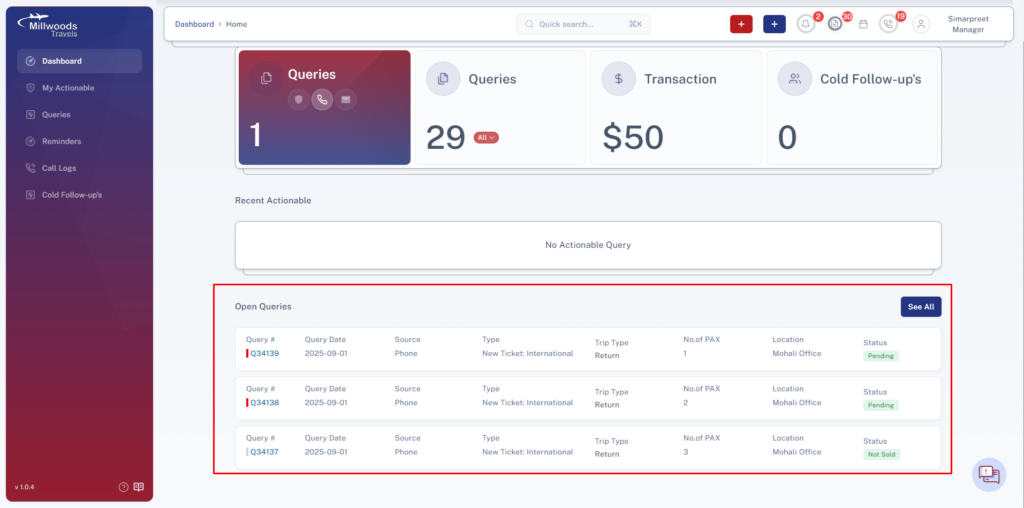
The Open Queries section lists queries created by the logged-in user that are still active or in progress.
Information Displayed in the Query List
Each query entry includes the following information:
| Field | Description |
| Query # | Unique identifier assigned to the query |
| Query Date | Date when the query was created |
| Source | Source from which the query was received |
| Type | Type of service requested (e.g., ticket booking) |
| Trip Type | Travel type such as One-way or Return |
| No. of PAX | Number of passengers |
| Location | Branch or office location |
| Status | Current stage of the query (e.g., Quotation) |
Additional Action
- See All button allows users to view the full list of queries in the Queries module.
1.6 Top Navigation Bar
The Top Navigation Bar provides quick access to important actions and system queues.
1.6.1 Create Reminder
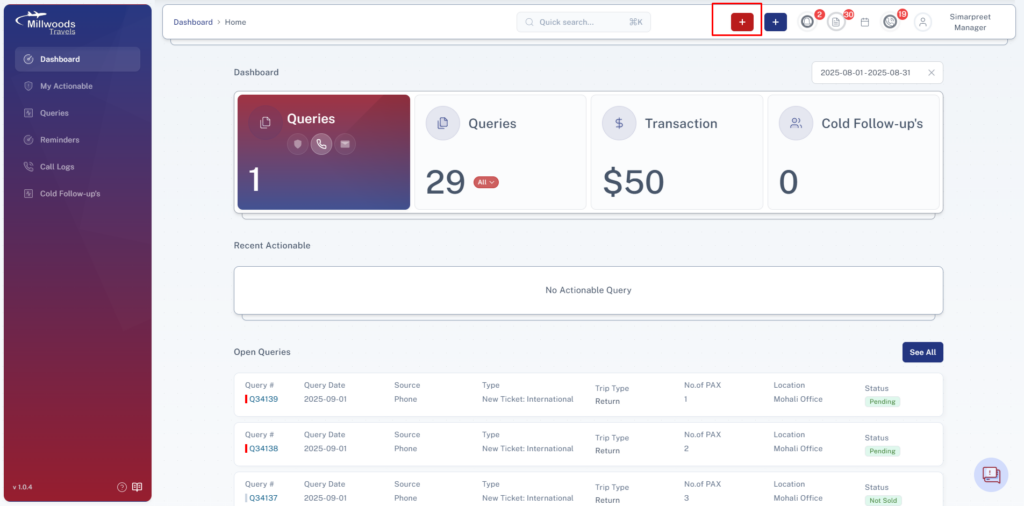
Icon: Red Plus (+)
Allows users to quickly create a reminder for follow-ups or tasks.
Steps to Create a Reminder
- Click the Red + button.
- Enter the reminder details.
- Set the date and time.
- Click Save.
(Detailed functionality will be explained in the Reminder Module section.)
1.6.2 Create Query
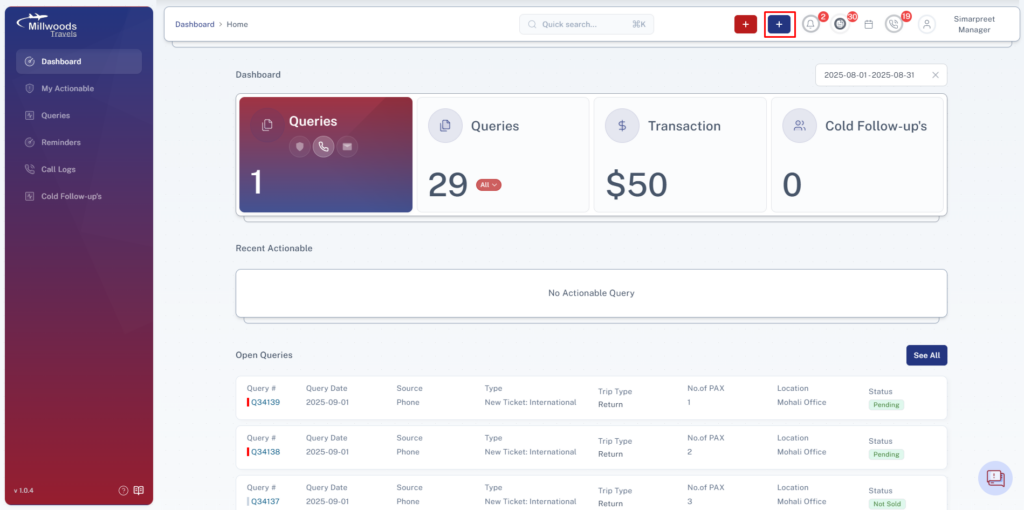
Icon: Blue Plus (+)
Allows users to create a new customer query directly from the dashboard.
Steps to Create a Query
- Click the Blue + button.
- Enter the customer and travel details.
- Save the query.
(Full details will be covered in the Queries Module section.)
1.6.3 Notifications
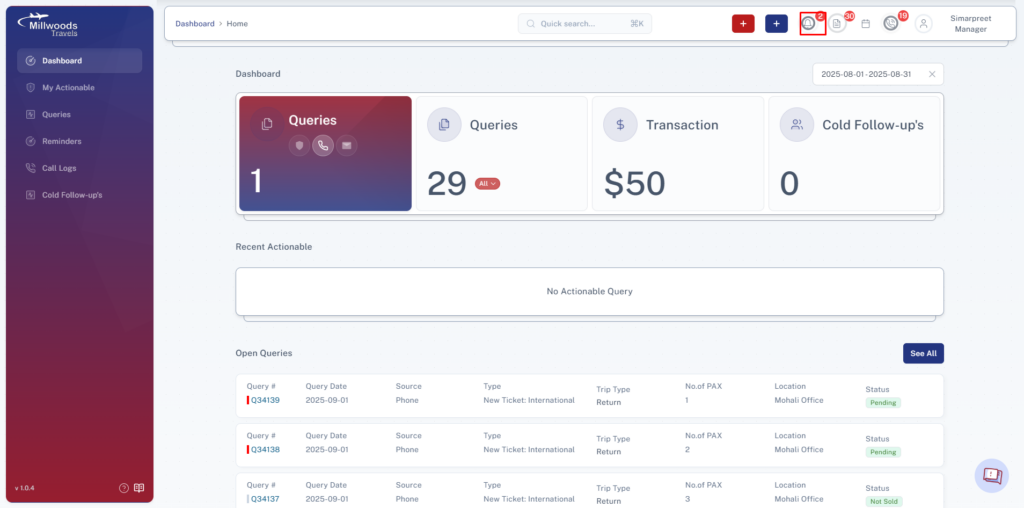
Icon: Bell Icon
Displays system notifications related to activities performed on queries associated with the current user.
Examples of Notifications
- Query status updates
- Query assignments
- Remarks added by other users
- Follow-up updates
Users can click the bell icon to view the full list of notifications.
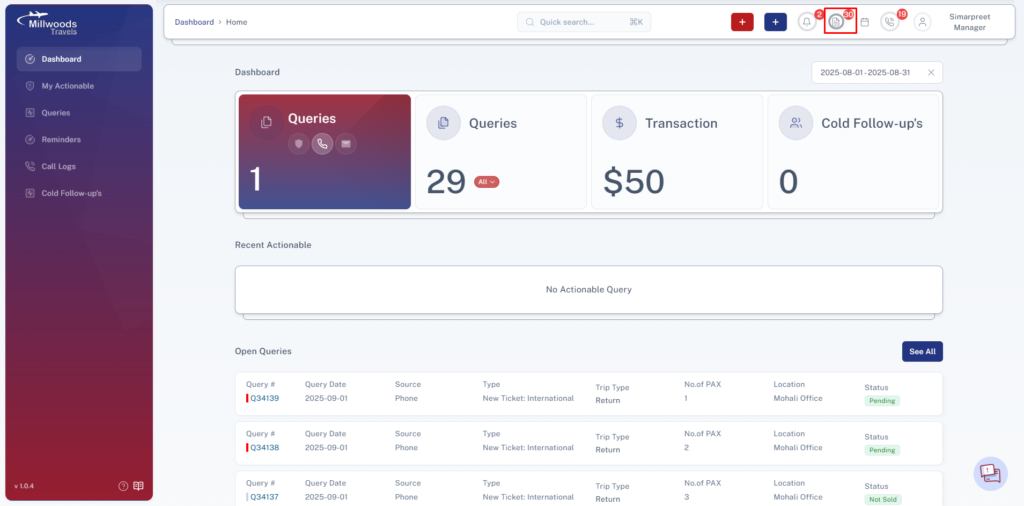
1.6.4 Billing Queue
Icon: Document Icon
Displays a queue of queries that are pending payment processing or billing confirmation.
This helps finance or responsible users quickly identify transactions that require billing action.
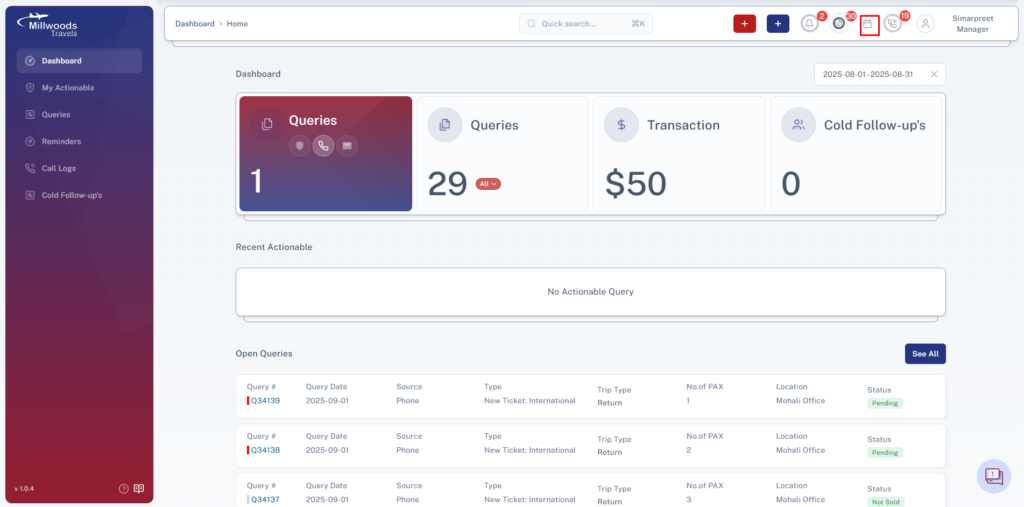
1.6.5 Reminder Queue
Icon: Calendar Icon
Displays reminders associated with the logged-in user.
Users can quickly view upcoming reminders and pending follow-ups from this section.
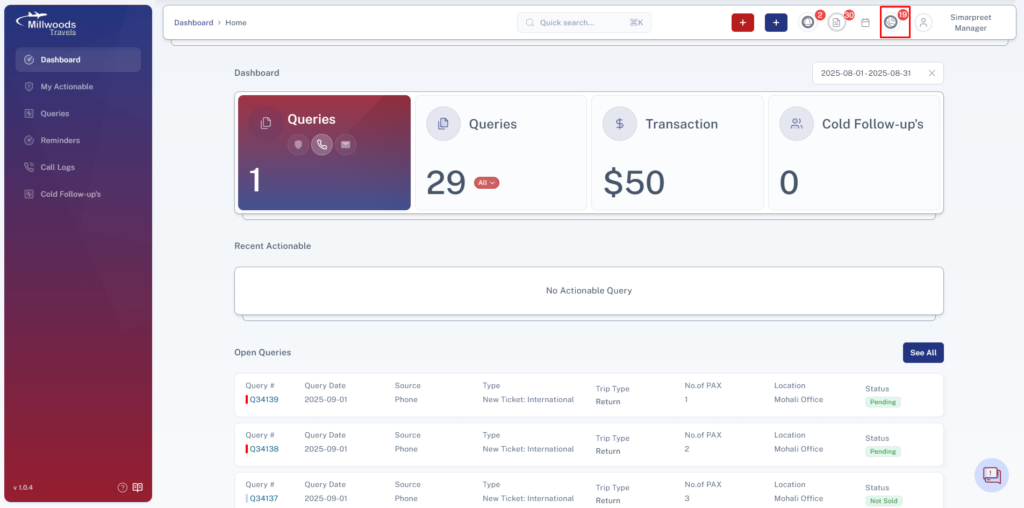
1.6.6 Call Queue
Icon: Phone Icon
Displays a list of calls where call remarks are pending to be filled.
This ensures that call interactions with customers are properly documented.
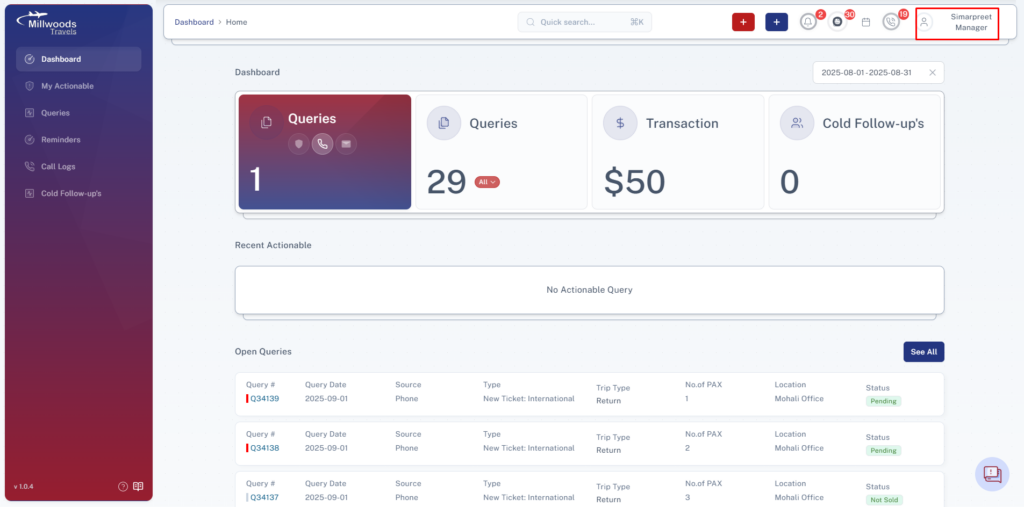
1.6.7 User Profile & Logout
Icon: User Avatar
Displays the logged-in user’s profile information.
Available Actions
- View logged-in user name
- Access profile options
- Log out of the CRM
To log out:
- Click the User Icon.
- Select Logout.
1.7 Best Practices for Using the Dashboard
- Review Recent Actionable Queries regularly to avoid missing follow-ups.
- Use the date range filter to analyze performance for specific periods.
- Check the Notification Panel frequently for updates on assigned queries.
- Ensure call remarks are updated from the Call Queue to maintain accurate records.
- Monitor the Billing Queue to ensure timely payment processing.