
Cancellation & Date Change Workflow (Reopen Query)
This is the most important part for handling post-completion requests such as cancellations and date changes.
Step 1: Initiate Request
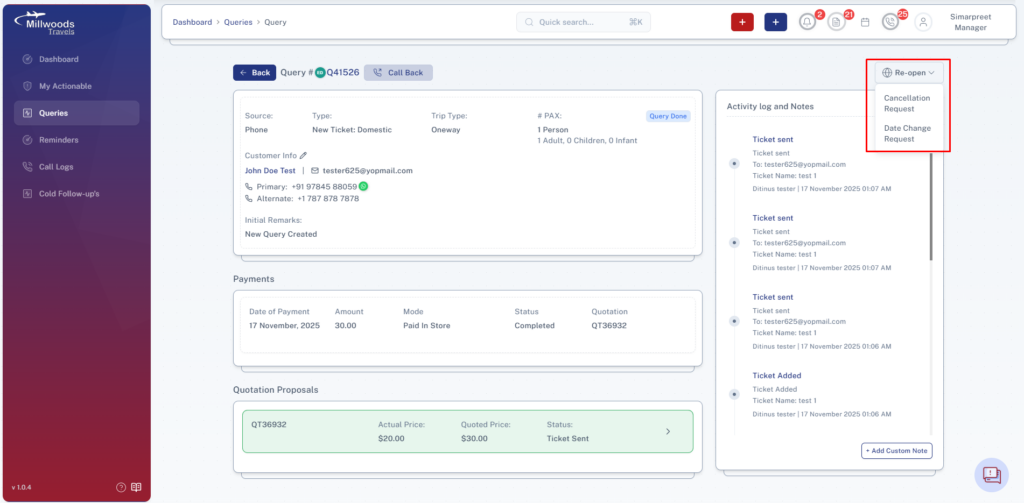
Go to a query marked as Done.
Select an option from the Reopen dropdown:
- Cancellation Request
- Date Change Request
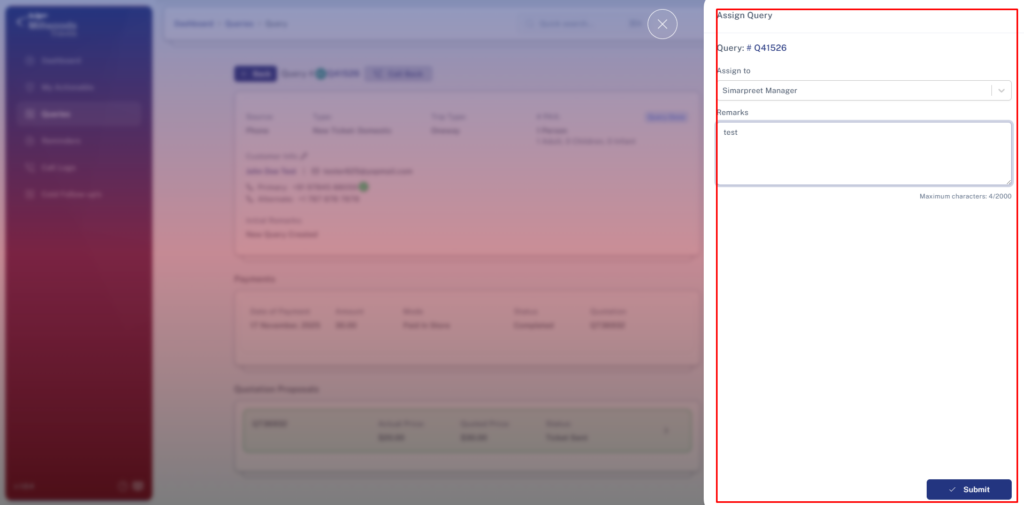
Assign to Manager and add remarks.
Cancellation Flow
Step 2: Initiate Cancellation Payment
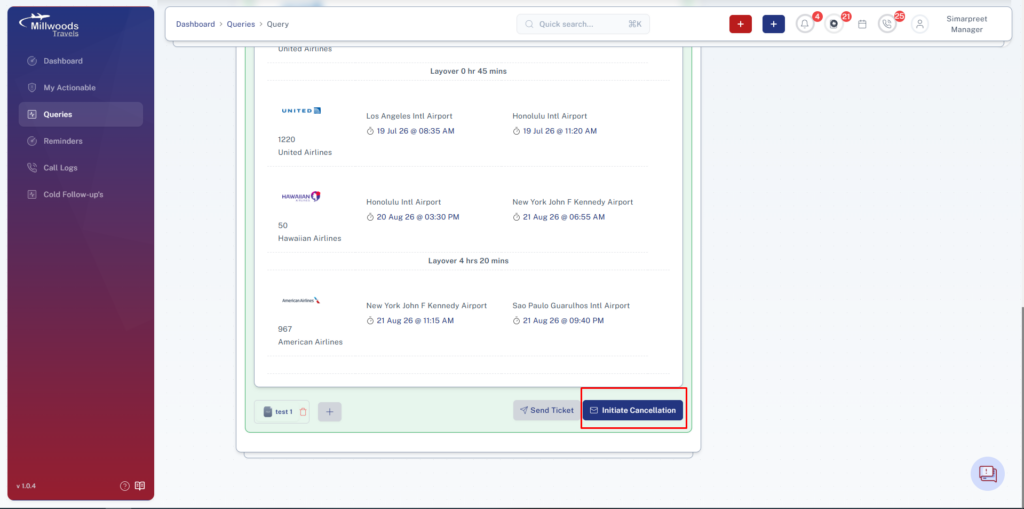
Go to Sent Quotation section.
Click on Initiate Cancellation.
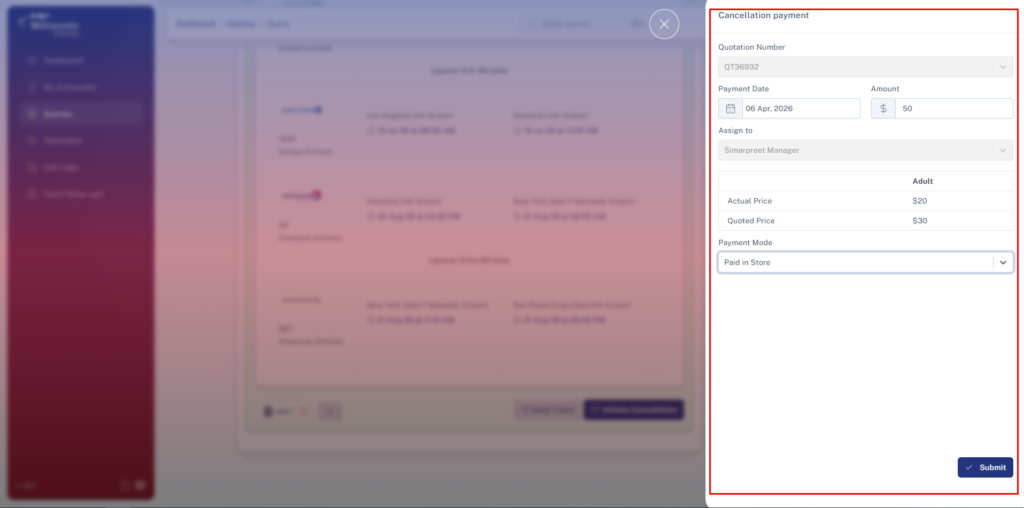
Fill the following after assignment:
Payment Date → Select date
Amount → Enter cancellation charge
Payment Method → Select applicable mode
Step 3: Manager Approval
Open the created payment intent.
Review the details and add remarks.
Mark the payment as Completed/Approved.
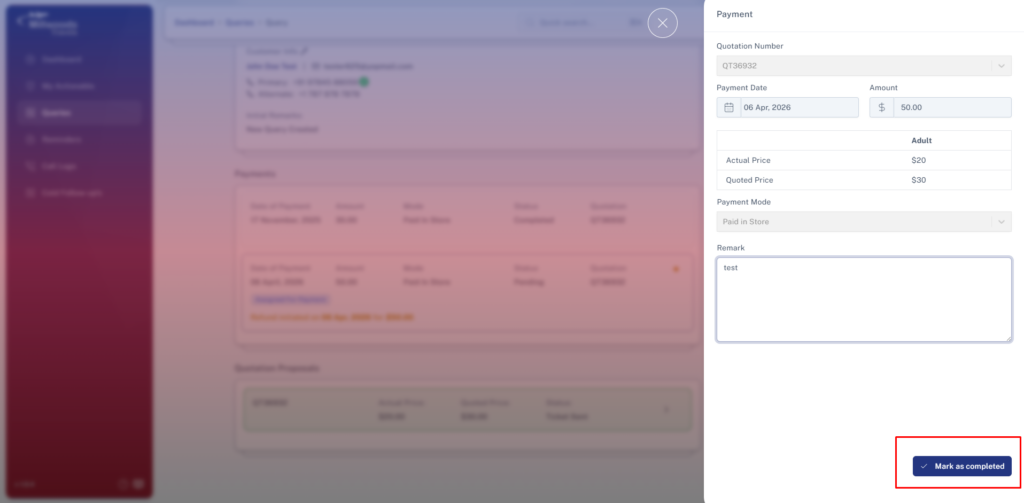
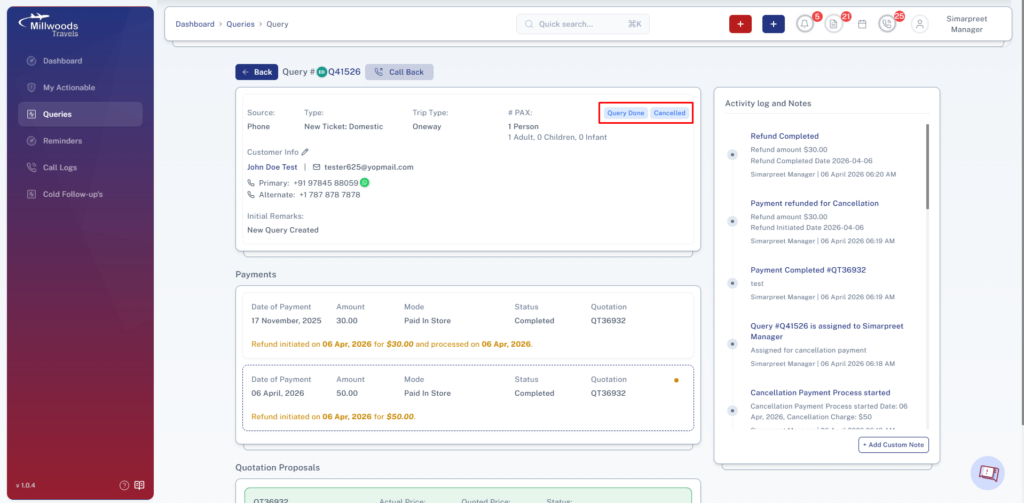
Step 4: Initiate Refund
Once cancellation charge is processed, initiate refund.
Fill the following:
Refund Date → Select date
Refund Amount → Enter refund value
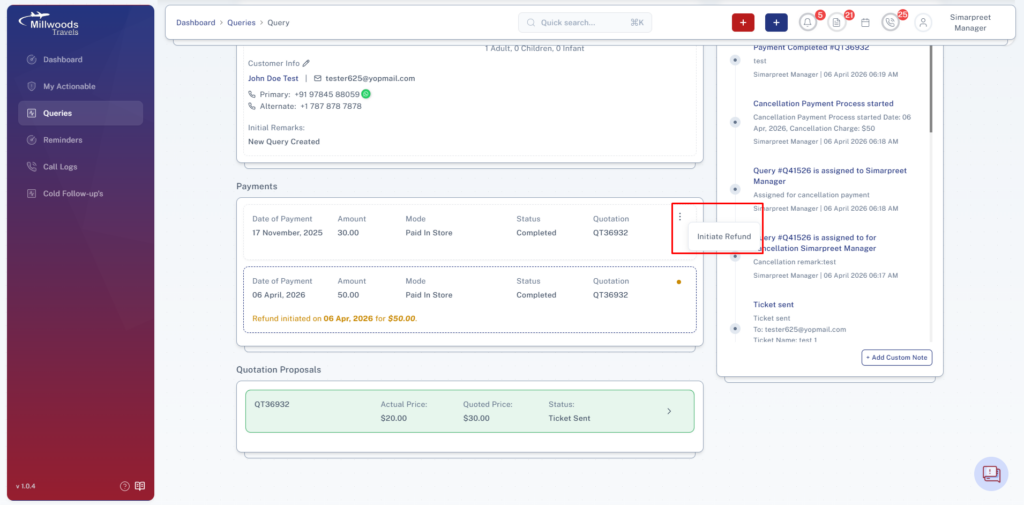
Step 5: Complete Refund
Select Complete Refund option.
Enter completion date and confirm.
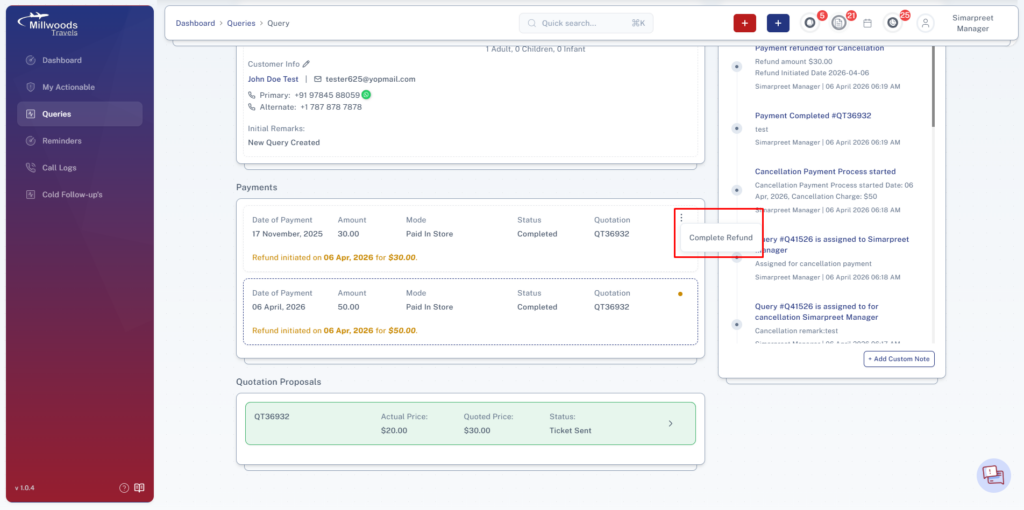
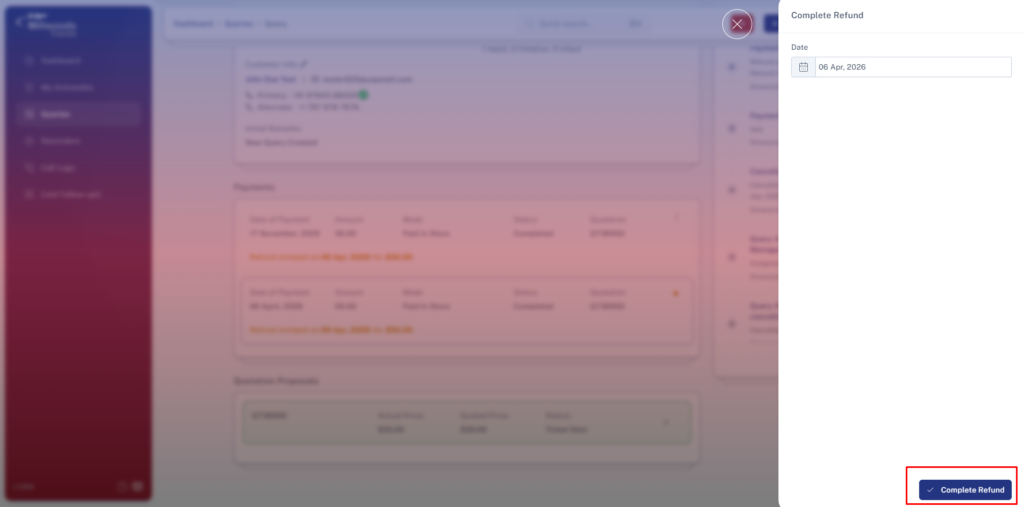
Step 6: Cancellation Final Status
Query is marked as Closed.
Booking is marked as Cancelled.
Date Change Flow
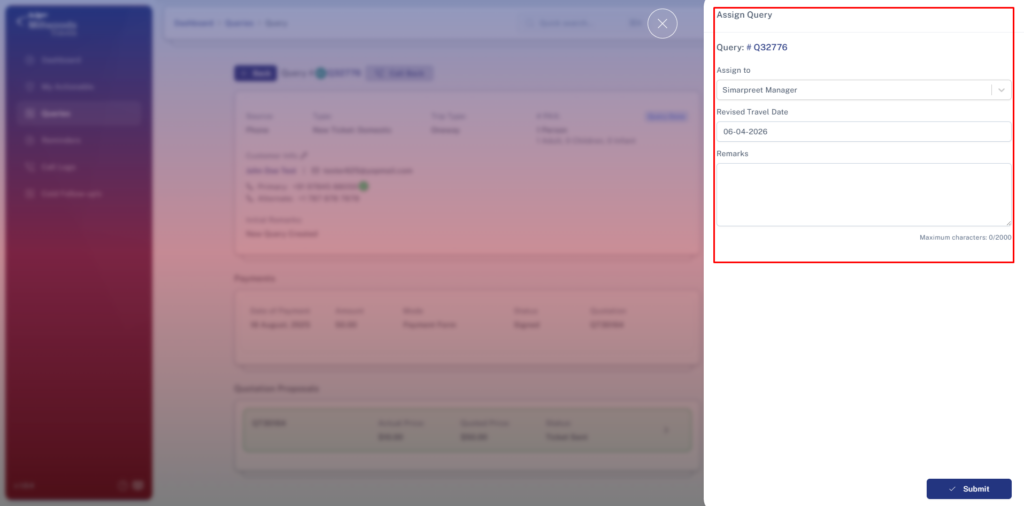
Step 7: Enter Revised Travel Details
In the side panel, enter:
Revised Travel Date → Update travel date
Remarks → Add necessary details
Step 8: Continue Booking Flow
After reopening:
- Add new quotation
- Share with customer
- Follow standard booking workflow
Step 9: Date Change Final Status
Query continues as active with updated travel dates.
Booking proceeds as per new schedule.
Daily Usage Guide
- Monitor all reopen requests regularly
- Approve cancellation charges promptly
- Ensure refunds are processed on time
- Track date change requests for quick turnaround
Best Practices
- Add clear remarks for every action
- Verify amounts before approval and refund
- Ensure updated dates are correctly recorded
- Avoid delays in reopen request handling